

Gboard is Google's virtual keyboard. It is available on Android and iOS and has all kinds of tricks to optimize writing. In addition, it also has useful functions such as text prediction, voice typing, automatic translation, among others.
However, the keyboard goes a step further, as it not only has productive functions, but can also be customized to suit your tastes, giving you a better user experience. Therefore, if you need to modify the Gboard keys to make them more visible or comfortable, in this article you will learn what you should do.
Steps to change the size of Gboard keys
If the keyboard feels too small or large, now you can adapt it to what you need. In its latest update, Gboard allows you to adjust the font size as you like. Although it is something simple, the truth is that in the past this was impossible because the dimensions of the Gboard keys were imposed by the Android configuration and could not be customized.
Finally, Google has decided to remove that limitation and to adapt the size of the letters on the keyboard you only have to do the following:
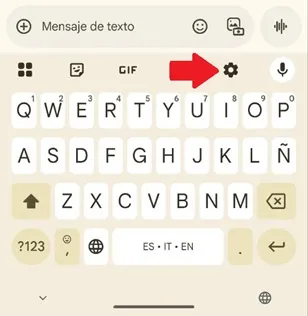
– Deploy Gboard in any application where you can write and tap the gear-shaped icon in the top menu.
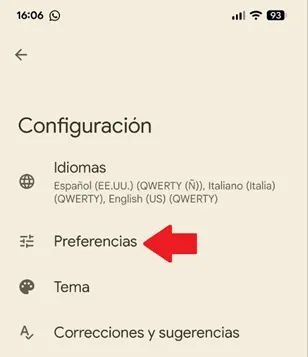
– The Gboard menu will open, select the “Preferences” option.
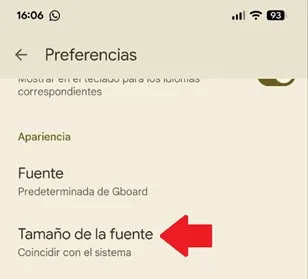
– Scroll down and click on the option called “Font size”.
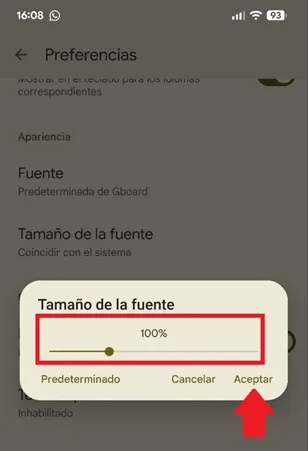
– Now, you can move the slider to the right to enlarge the letters up to a maximum of 200% or to the left to reduce them up to 85%. That's all you have to do, choose the percentage that is most comfortable for you and press "Accept" for the changes to be applied.
Leave a Reply