
Creating videos on TikTok is easier than you might think, and you can not only use them to show yourself dancing to popular music on the social network. You can also include GIFs with sound, have the freedom to organize your favorite videos into collections, and much more.
However, if any of your videos aren't performing as they should, or you simply no longer want to be seen a certain way, you may want to delete that video from your TikTok account, something you can do without complications. And if you don't want to delete it, maybe what you want is to make it private so that no one else sees it.
In this article you will learn how to do both procedures, so you can decide which one best suits what you want to achieve:
Steps to delete a TikTok video
Deleting TikTok videos is a simple and safe procedure, and the instructions are the same on Android and iOS. You will only have to do the following:
– Enter the TikTok app and tap the “Profile” icon located in the lower right corner.
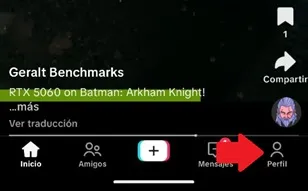
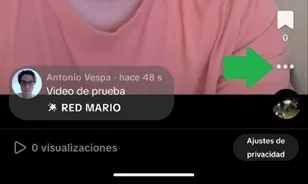
– Immediately, you will enter your video library, once there, choose the video you want to delete and touch the three ellipses found in the menu located on the right of the screen.
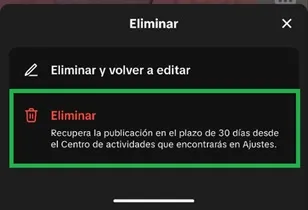
– A floating window will open, slide the function menu to the left and click on the “Delete” option.
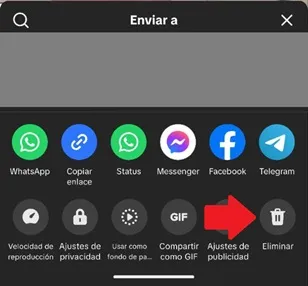
– Finally, confirm the action by pressing the “Delete” button.
How to make a private video on TikTok
If you don't want others to be able to see a video on TikTok, but you don't want to delete it, what you can do is make it private.
By making a TikTok video private, you control who can see it. This way, you can keep it just for yourself, limit it to your friends, or keep it hidden if you post it. This is useful for multiple reasons, such as managing content visibility, making test videos, protecting your personal privacy, and more. So, to make the video private, you just have to follow these steps (they are the same on Android and iOS):
– Enter the TikTok app and access the “Profile”.
– Choose the video you want to modify and press the three ellipses icon.
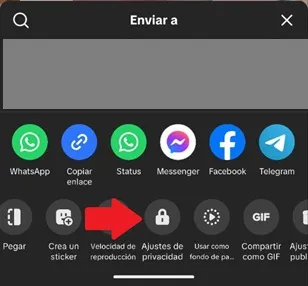
– A floating window will open, slide the bottom menu to the left and select the “Privacy Settings” option.
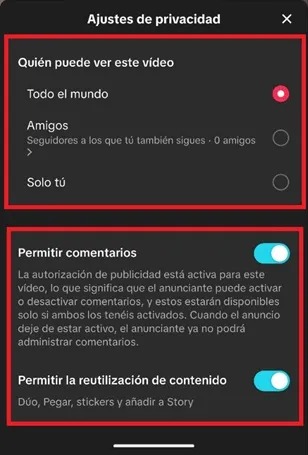
– Now, choose who can see the video, you can choose between “Everyone”, “Friends” (you can choose them manually) and “Only you” so that no one else accesses the content. You can also activate or deactivate comments, as well as the reuse of the content you create.
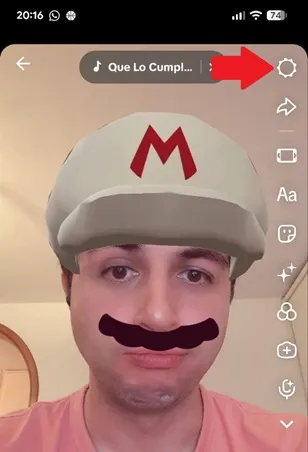
– On the other hand, if you are making the video and want to manage your privacy immediately, you just have to press the gear-shaped icon located in the upper right corner. This will open the menu for you to control who can see the post.
Leave a Reply