
Share your LinkedIn profile It can be very simple if you create a QR code using the platform's native function. This option allows other users to reach your professional account without having to enter the name in the search engine or sharing the profile link.
It's faster, you optimize times, you don't lose job opportunities, there are no spelling errors or confusion when searching. QRs have been evolving the way of sharing data between users, for example, you can also create a QR code for X (formerly Twitter) to make it easier for others to follow you.
By creating a QR on LinkedIn you forget about long links and get closer to more professionals around the world. If you want to learn how to do it, as well as how to scan them, here are the steps for each case.
Steps to create QR code on LinkedIn
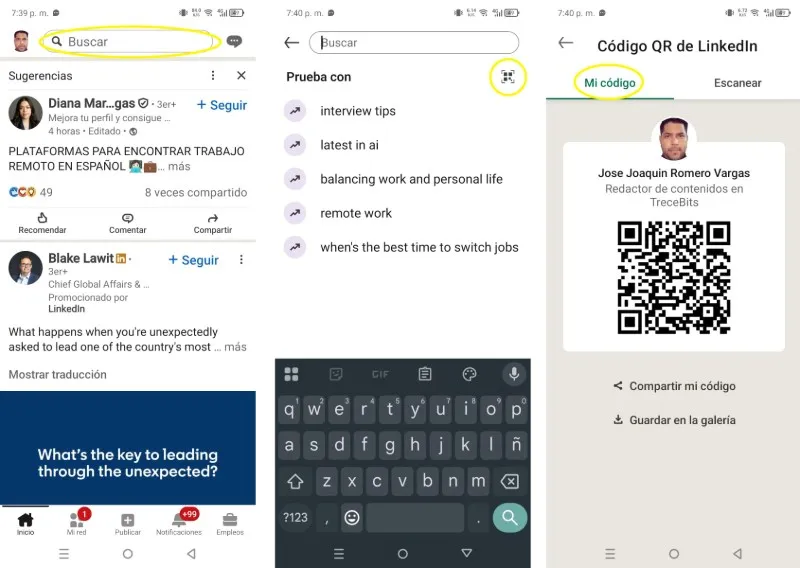
-Login to your LinkedIn account, tap the search bar as if you were going to type something there and your search history will be displayed.
-Tap the QR icon located in the upper right corner of the screen.
-Make sure you are positioned in the "My code" tab.
-Press "Share my code" to send it directly to other digital platforms such as WhatsApp, Messenger or by email. Press “Save to Gallery” to store it on your device.
How to scan a contact's LinkedIn QR code
LinkedIn has its own QR reader, which allows you to read the code and redirects you to this person's account or profile. To use it, you must follow these steps:
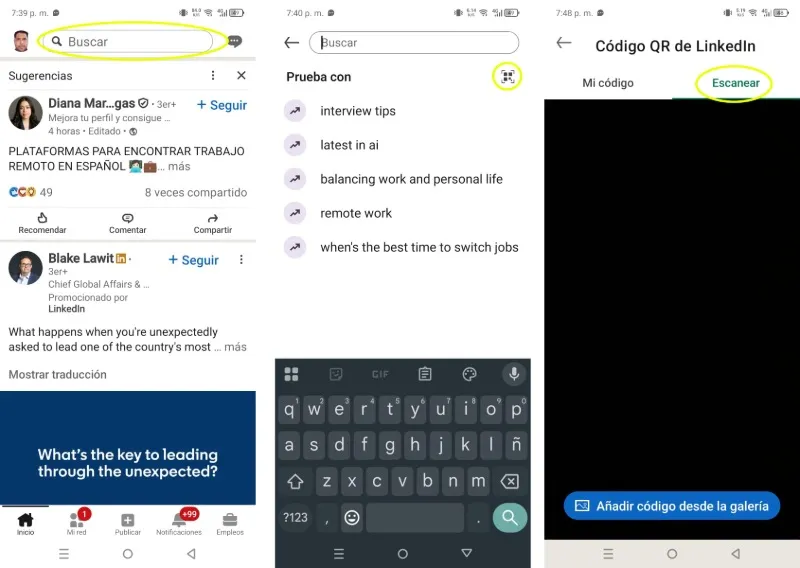
-Login to your LinkedIn account, tap the search bar as if you were going to type something there and your search history will be displayed.
-Tap the QR icon located in the upper right corner of the screen.
-Touch the "Scan" tab and grant the app permissions to use the mobile camera, focus on the QR and wait for it to take you to the profile. You can also use an image of the code taken from your personal gallery, grant access permission to the app and upload the image.
Leave a Reply