
Steam Link It is a platform developed by Valve (American company that owns Steam) that allows you to broadcast the video game you are running on your computer to the screen of another device, such as your Smart TV, Tablet, Mobile and even another PC. Thanks to this, you will continue the game from another team without using anything else.
The Steam Link app is only one intermediary that transmits the video and audio of the game to another device. This means that video game processing, graphics and performance in general will depend completely on the computer that you are using to run the title in question.
In this way, while the computer that is running the video game remains on, you can broadcast the game to another team that has Internet connection or mobile data, such as your smartphone, for example. It is not necessary for the devices to be connected to the same Internet network so that Steam Link works, so you can play from anywhere without limitations.
In addition, the platform is compatible with the best manufacturers such as Xbox, PlayStation, Nintendo Switch, Steam Controller, keyboard and mouse and more. Thus, when you match the retransmission team, the buttons and actions will be automatically configured to start the game without having to make additional adjustments.
How to use Steam Link
The first thing you should know is that Steam Link is a free app, to use it you should not pay any subscription or buy additional accessories for your PC. Before starting, be sure to turn on the computer from where you will broadcast the video game and connect it to a Wi-Fi or Ethernet network that is stable (at least 50 Mbps) so that the transmission is optimal. Taking into account the above, do the following:
- Open Steam on the computer that will become the server to broadcast the game. Then, enter the Steam Link app on the device so that, automatically, look for the PC in which you have opened your Steam account. The computer will appear in a box located on the left (if the PC does not appear, it is "scanning again").
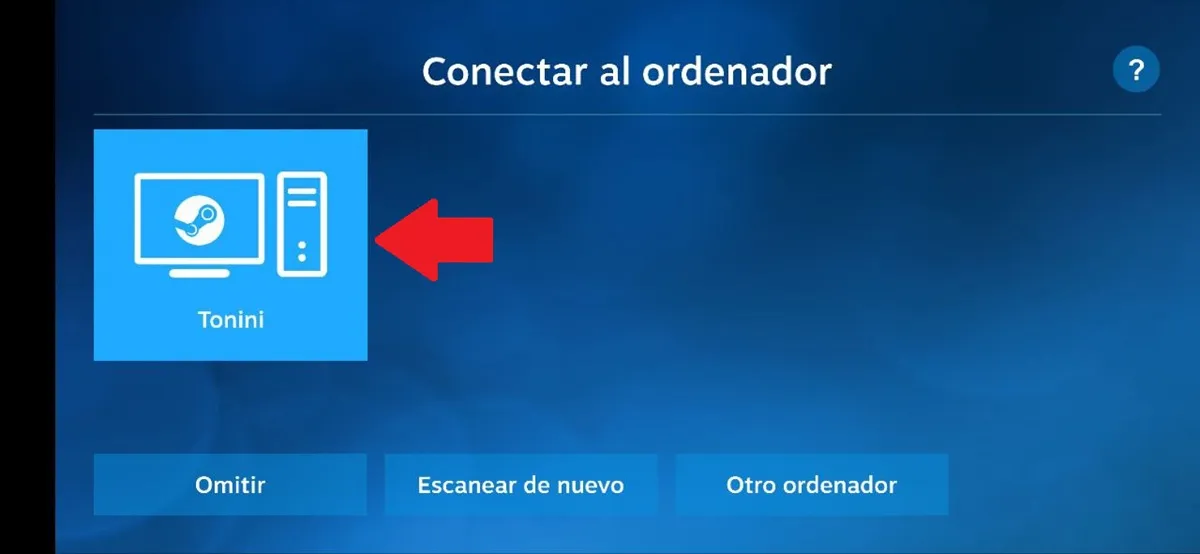
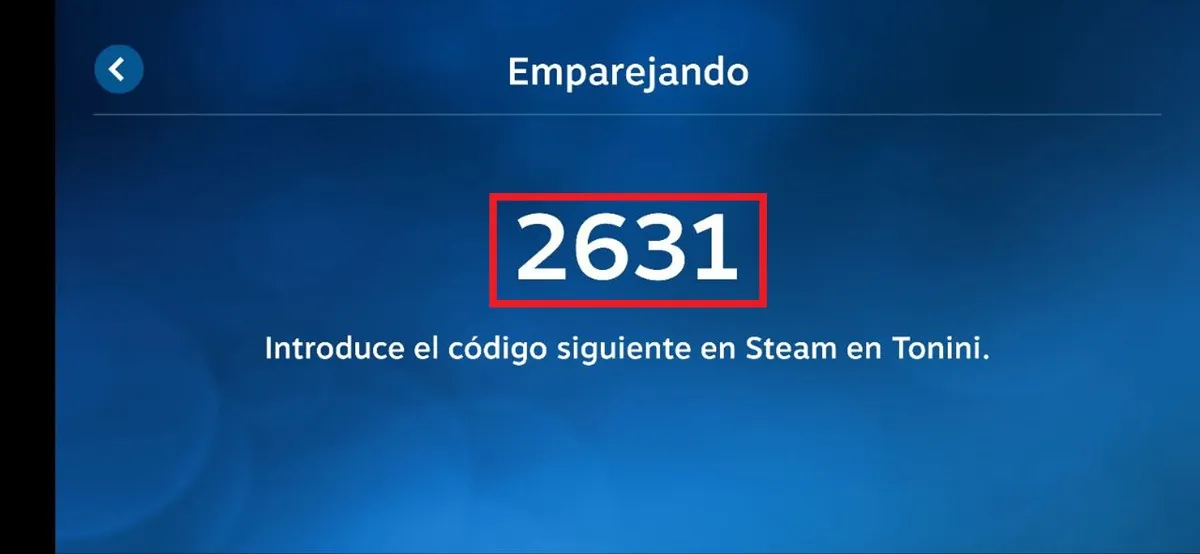
- Click on the table so that Steam Link throws the pairing code.
- Now, return to the PC in which you opened Steam, click on the "Steam" option located at the upper left angle and select "configurations."

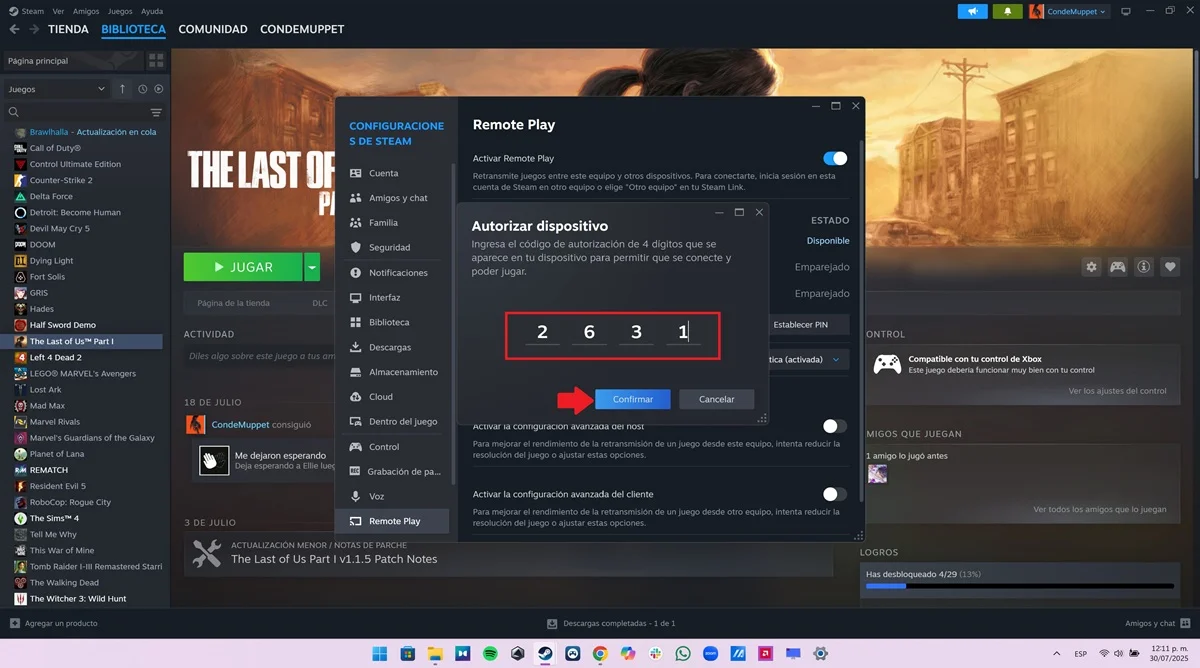
- A floating window will open, press on "Remote Play" and choose "match Steam Link."
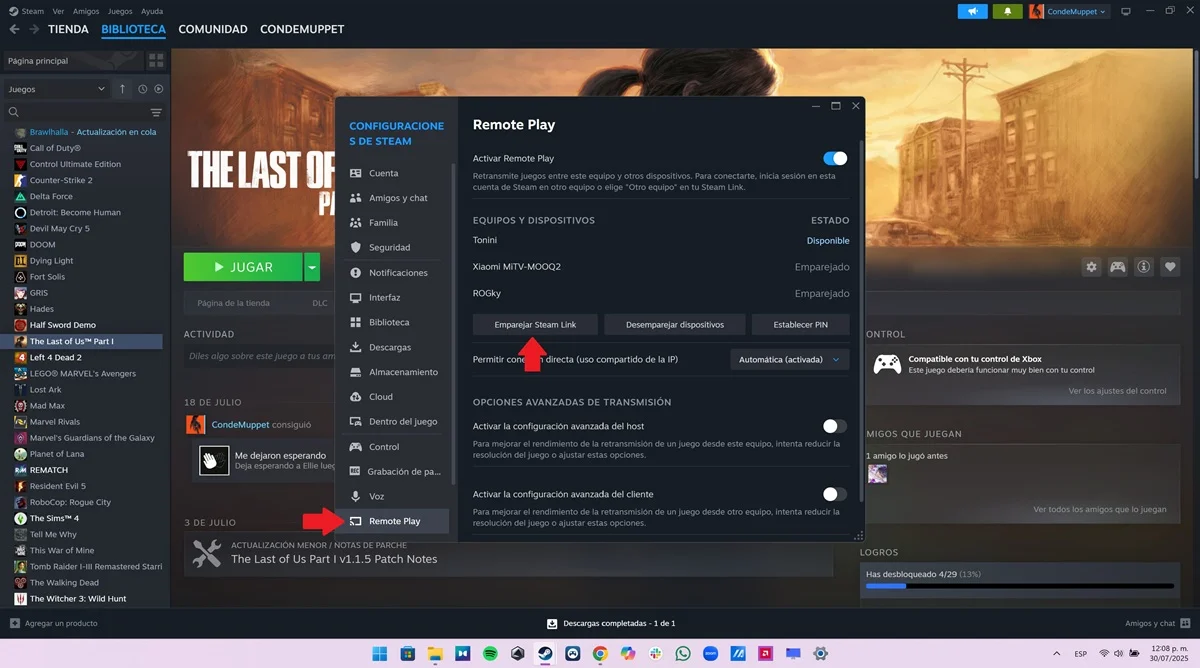
- In the window that will open, write the code that threw the Steam Link app to match your Steam account to the device that will receive the retransmission of the video game executed on your PC.
- Once the previous step is completed, enter your Steam library and run the video game you want to broadcast from the computer.

- Arrived at this point, return to the team in which you installed Steam Link and enters the PC that you matched the app to start the retransmission of the video game.

That is all you should do to match a team to Steam Link to transmit the image and audio of the game you run on your computer. Highlight that, if you play again on the same device from which you already broadcast, you will not have to match the PC again because it will be recorded on the Steam platform.
How to customize Steam Link's transmission quality
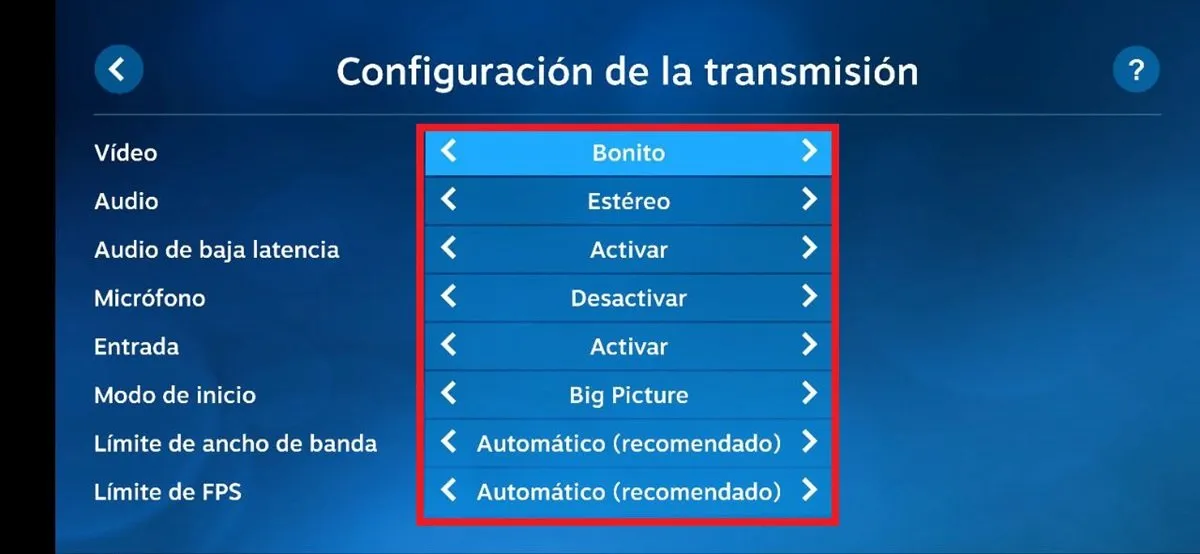
If you want to configure each transmission option, you must do the following:
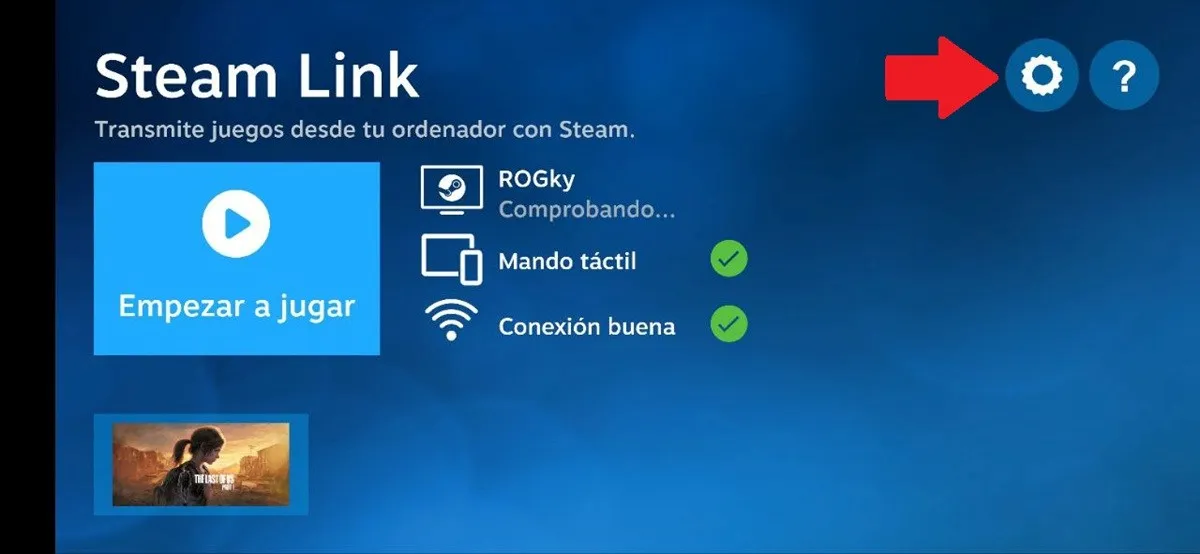
- Enter the Steam Link app on the equipment that will receive the transmission of the video game and click on the gear -shaped icon located in the upper right angle.
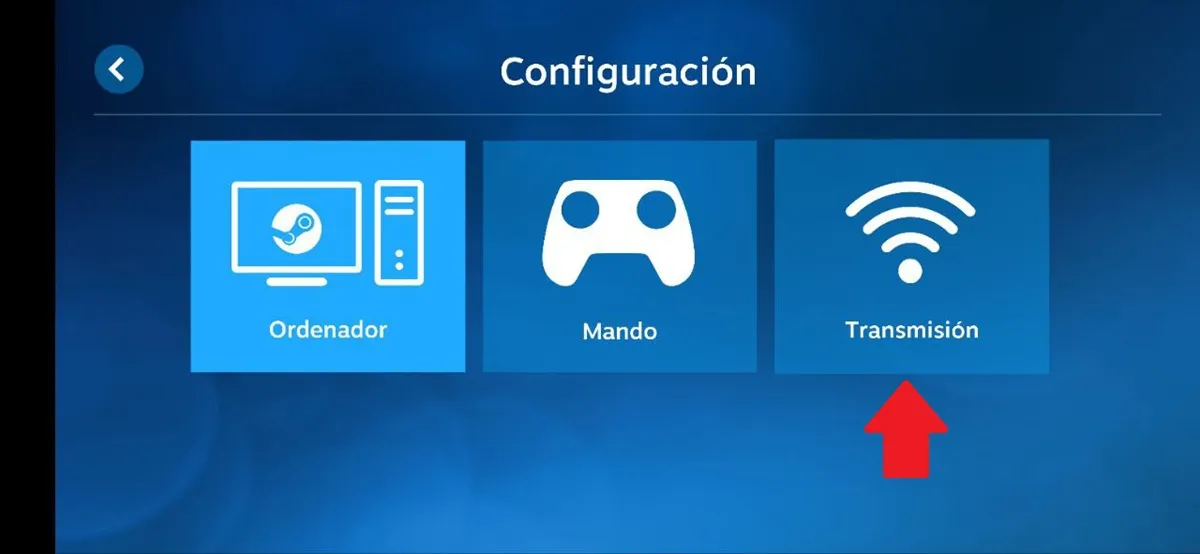
- Select the "Transmission" option.
- Choose the resolution, either "1080p improved" or "improved 4K" (this will depend on the specifications of the team) and oppress on "customize."
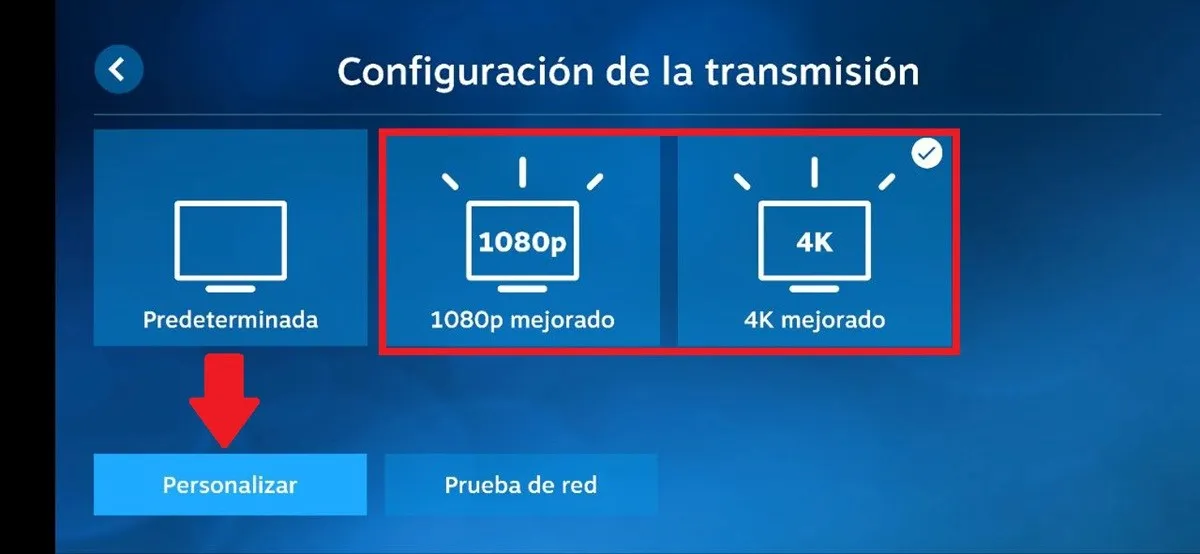
- In this section you can modify each section (audio, microphone, bandwidth limit ...), the most important of them is the "video" section. This will allow you to choose if you want the transmission to focus on being "fast" to improve latency, have a "balanced" performance between latency and image quality or focus on optimizing the graphics ("beautiful") to prioritize the resolution.
Leave a Reply