

Activating or deactivating the smartphone vibration is a basic management that you can do in the settings of your mobile operating system. This way you can control how you receive mobile notifications, and the way in which you are notified of incoming calls and messages, as well as control whether the phone vibrates when the keys are pressed.
If you want to personalize your experience with the terminal to adjust the level of discretion, prevent untimely interruptions or, on the contrary, you want to avoid missing notifications due to vibration, in this article you will learn how to activate vibration according to your needs.
Steps to manage mobile vibration
Next, you will learn how you can enable or disable smartphone vibration on both Android and iOS. Follow the steps depending on the operating system your device has:
Android
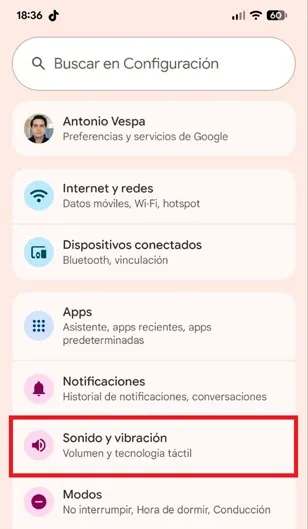
– The first step is to enter the “Settings” of the phone and then enter the “Sound and vibration” section.
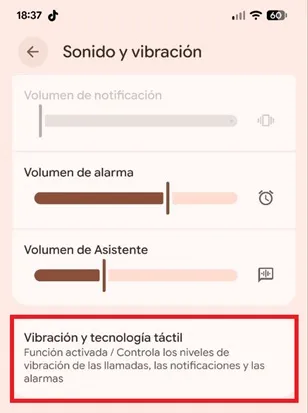
– Scroll down and enter the “Vibration and touch technology” section.
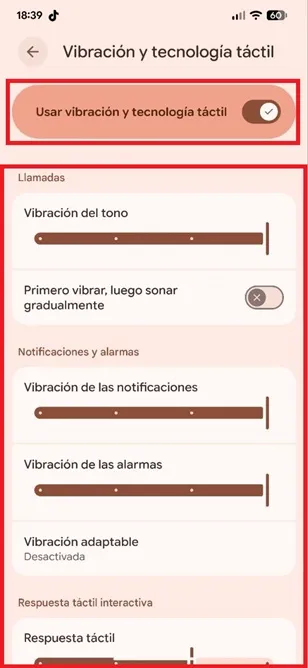
– If you want to activate or deactivate vibration completely, just turn the “Use vibration and touch technology” function switch on or off.
On the contrary, if you want to manage each section in detail, in that menu you can adjust the vibration of the ringtone, notifications and alarms, as well as use adaptive vibration, adjust the haptic response (key vibration), configure the vibration of multimedia content and more.
iOS
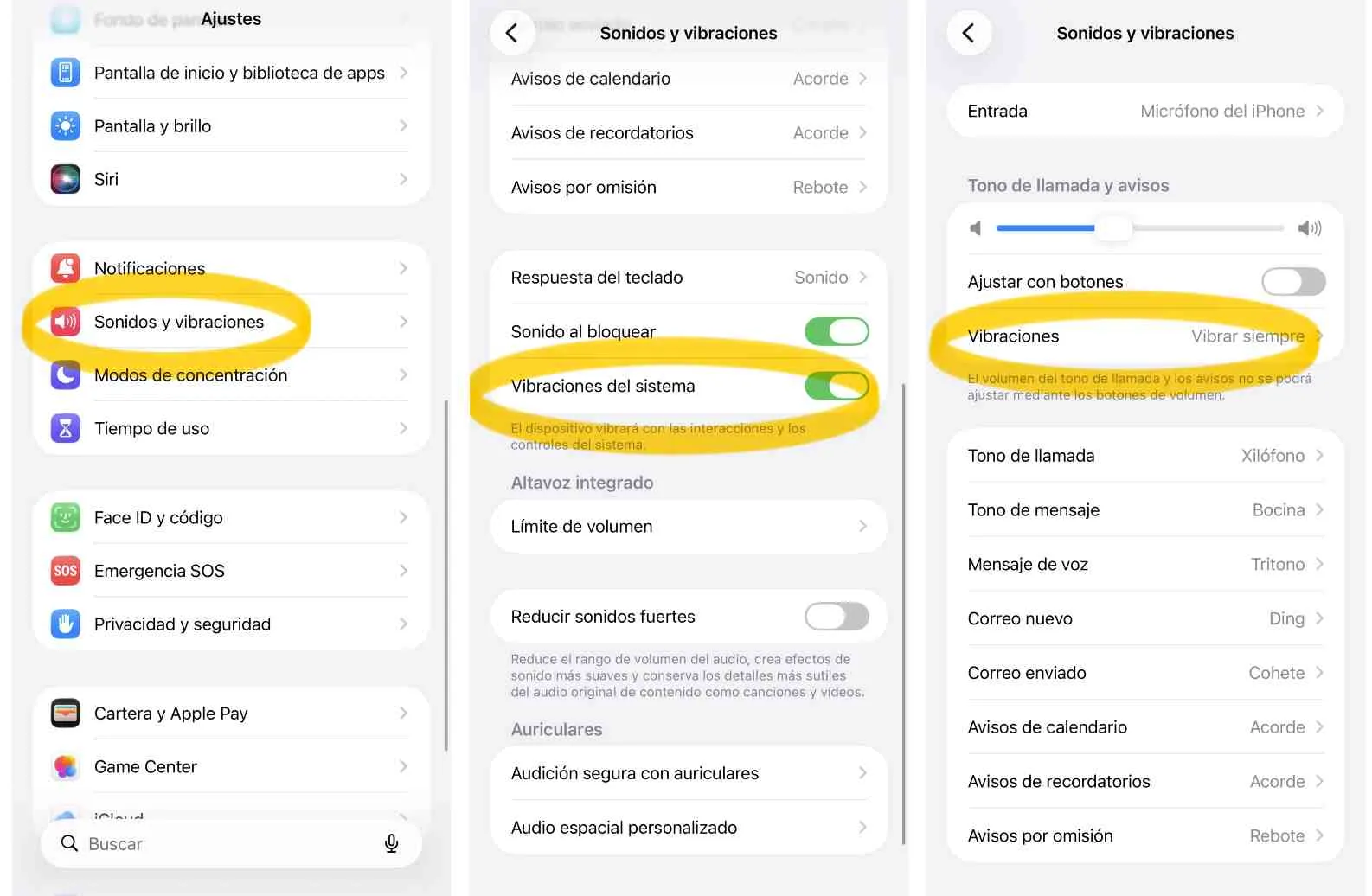
– Enter the “Settings” of iOS and tap on the “Sounds and Vibrations” option.
– To activate or deactivate vibration, simply operate the “Ringtone and notifications” function switch.
There, under "Vibrations", select when you want the mobile phone to vibrate. Indicate “Always vibrate” if you want it to do so with both calls and messages.
Additionally, you must leave the “System vibrations” section activated.
With this you will now have the device's vibrations enabled.
Leave a Reply