

Sharing Instagram Stories through a link is very useful, as it allows you to send the content to another social network, instant messaging application, email, etc. Thanks to this tool included within the social network, you will generate a URL of the Story that you want to share, whether you created it or someone else uploaded it.
If you are a content creator or manage your own business or brand, it is a tool that will be useful to increase traffic or generate specific actions with your content: promote web pages, products, services...
Therefore, below, you will learn how to use this function correctly so that you can get the most out of it.
Steps to obtain the URL of an Instagram Story
If you want to obtain the link to an Instagram Story, the procedure varies slightly if it is content that you have published or if it is a Story uploaded by someone else. In both cases, the application offers everything you need to share the Story with a URL, you just have to do the following:
From a story of its own
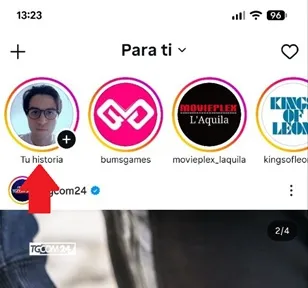
– Enter the Story you have published; You will only have to press the "Your story" icon, which is located in the upper left corner.
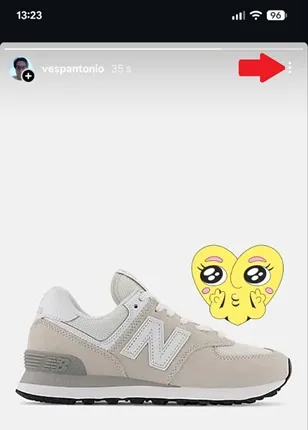
– Now, press the three vertical dots in the upper right corner.
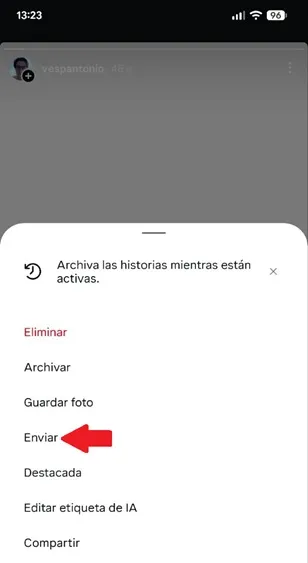
– A floating menu will open with several options, there you must select “Send”.
– The Instagram app will show you several alternatives to share your Story quickly, choose the “Copy link” function.
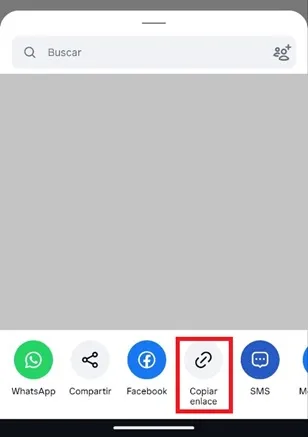
– Once the link has been copied, you can share the Instagram Story directly in any messaging app (WhatsApp, Telegram, Slack...), send it in an email and more.
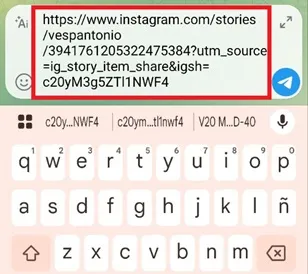
From someone else's story
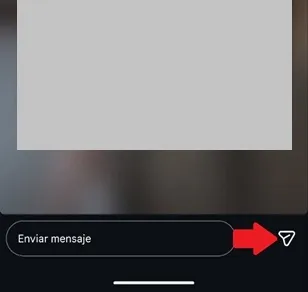
– If you want to share someone else's Story through a link, you must enter it and press the paper airplane-shaped icon in the lower right corner.
– You will see a menu, choose “Copy link” and with this you can send the URL of the Story to whoever you want.
On iOS mobiles (iPhone)
On the iPhone, the procedure is even faster. You just have to enter the Story you want to share, whether it's yours or someone else's, and do the following:
-Tap the “Share” icon, which is shaped like a paper airplane and is located in the lower right corner of the screen.

– You will see a drop-down menu, there you will have to choose “Copy link”.
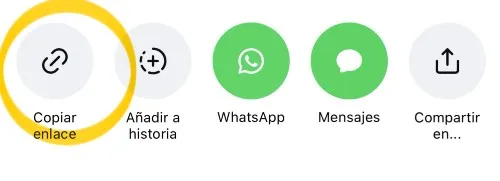
This will be saved to the iPhone clipboard for you to paste and send via messaging apps, emails, or any other means you want.
Leave a Reply