
YouTube advertising can be a nightmare. If you don't have a YouTube Premium subscription, the platform will flood you with ads every time you play a video. This completely ruins the user experience, because it prevents you from viewing the content comfortably and uninterrupted.
Additionally, YouTube will prevent ad blockers from working in the app, but A new alternative has appeared that nips ads in the bud. It's about the browser DuckDuckGowhich has its own function to prevent YouTube from activating advertisements when you enter YouTube from its search engine. Next, you will learn how to use this tool correctly.
How to remove YouTube ads with DuckDuckGo
The first thing you should know is that DuckDuckGo is one of the best private browsers and focuses on protecting your information and shielding your personal data from being exposed on the Internet. It is a browser that has a great reputation, so there is nothing to fear. In addition, it is available on Android, iOS, Windows and macOS.
The procedure to remove YouTube ads within DuckDuckGo is as follows:
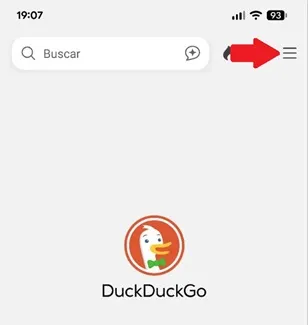
– Enter the browser and press the three horizontal lines that are located in the upper right corner.
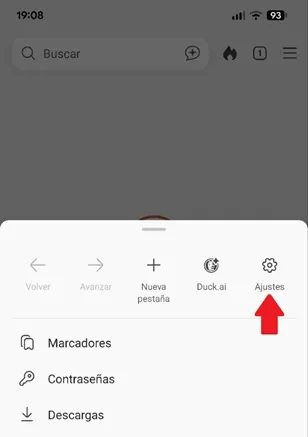
– A menu will open at the bottom of the screen, select the “Settings” option.
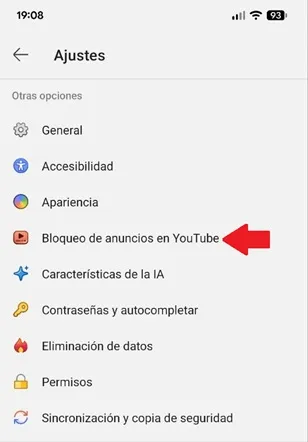
– Scroll down and click on “Ad blocking on YouTube”.
– Turn on the “Block YouTube Ads” feature switch.
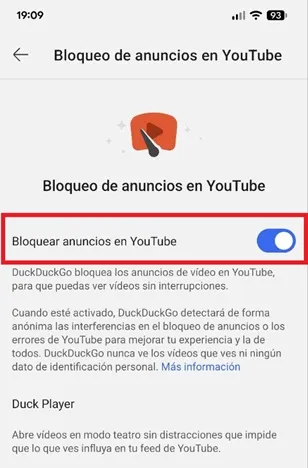
– Now, from DuckDuckGo, go to YouTube, search for the video you want to play and, when the DuckDuckGo alert appears on the screen, enable the “Remember my choice” function switch and press the “Activate Duck Player” button.

– That's all you have to do, now the video will open from Duck Player (the browser's player) and annoying YouTube advertising will no longer ruin your experience.

Leave a Reply