
One of the most useful functions of Android phones is that they allow you to add and manage multiple Google accounts on a single smartphone. Thanks to this, from your phone you can enter various Google profiles to check emails, search for files in Google Drive, manage passwords and subscriptions, and more.
If you want your device to allow you to choose the Google account you want to use for each application and to be able to quickly switch between each of them, in this article you will learn how to add each of your profiles correctly so that they are synchronized with your mobile.
Steps to add Google accounts on Android
Before starting, it is important that you know that it is a quick, easy and safe procedure, since the Android operating system itself offers you everything you need to add Google accounts without any type of restriction. Taking the above into account, the indications are as follows:
– Enter the Android “Settings” app, scroll down and select “Passwords, access keys and accounts”.
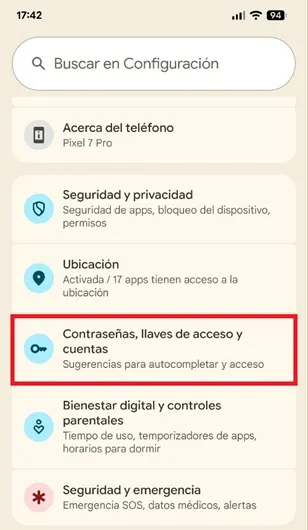
– Once inside, press the box called “Google”.

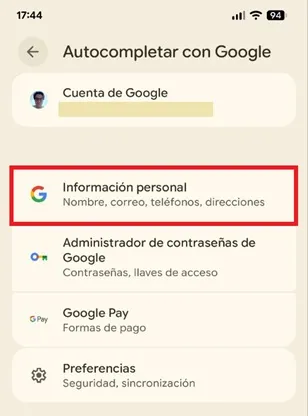
– You will be redirected to a new menu, there click on the “Personal information” option.
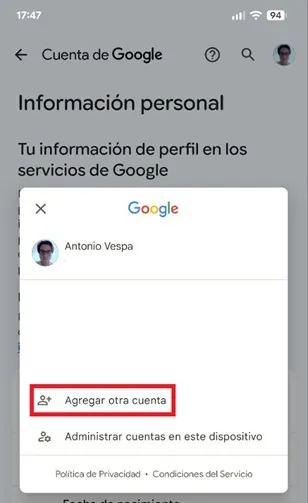
– Now, tap your profile icon located in the upper right corner.

– A floating window will open, choose “Add another account”.
– Finally, write the email and password for the Google account so that it is added to your Android mobile.

That's all you have to do, now you can register all the profiles you want so you can easily manage them from your Android phone. This way you will consult information and do any other type of management on the account you want in a simple and effective way because changing between profiles will not be a problem.
Leave a Reply