
Having an updated Facebook profile photo that represents the values you want to communicate to other people on the social network is essential to taking care of your personal image on the Internet.
This applies to both personal profiles and Company Pages, where it is also very important to take care of the profile photo. After all, it is the first impression that other people get about you or your business when they encounter you on the social network, whether because they visit your profile page or because they are shown content that you have published, or because you have left a comment on a Facebook post and they see it, etc.
Therefore, you should never leave your profile photo outdated. If you want to change it, you should know that the steps to do it from your computer or mobile phone are quite similar, as you will see in this article.
Steps to change your profile photo on Facebook
If you want to change your profile photo, you have different options, all equally simple.
Whether from your computer or mobile phone, all you have to do is connect to the social network and go to your profile page.
Click on your current profile photo and a menu with several options will be displayed. You can choose the one that best suits what you want to do: see the profile photo, choose the profile photo or add a frame. This last option will allow you to customize your profile photo with filters and frames. It is the one used, for example, if you want to add a flag to your profile photo on Facebook.
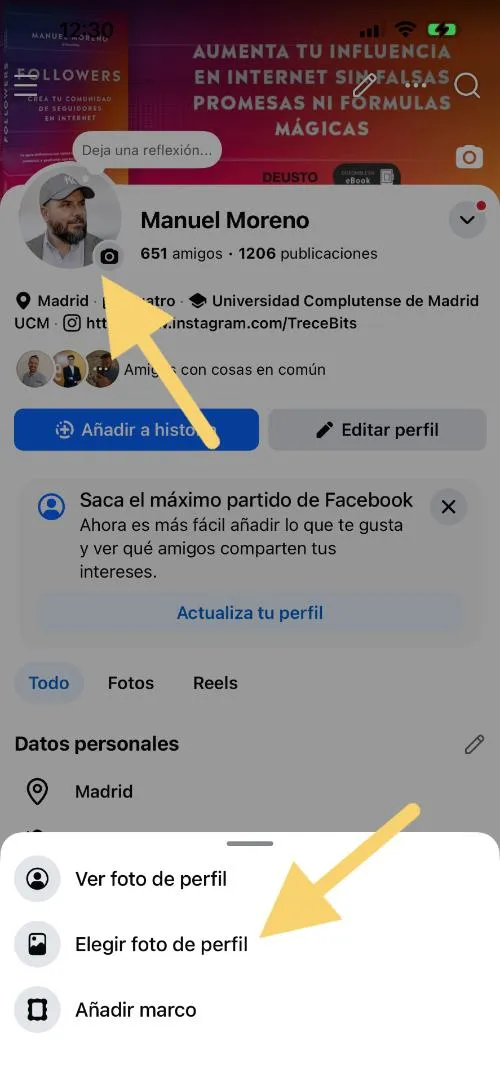
If what you want is to change your profile photo, you will have to go to "Choose profile photo." There a menu will open in which you can search for images in the Gallery of your mobile or your computer and you will also be shown "Suggested photos" from among those that you have already uploaded to the social network. They will be those that the platform considers could serve as a profile photo.
You will also have the option to click on the camera icon located in the upper right corner of the screen. This way, you can take a new photo for your profile at that precise moment.

Another option you have is, instead of clicking on your profile photo, clicking on the small camera icon that appears next to it. This way you will directly access the options that appear in the "Choose profile photo" menu that we just saw. That is, you will be able to choose a new profile photo faster without going through the previous menu.

From your computer you have the same options as on your mobile, but you could also click on the "Edit profile" button found under the header image of the Facebook profile. The options to edit your profile will open there and you could also select to update the profile photo.
Leave a Reply