
If you are a user of the social network X (formerly Twitter), you will know that there are several ways to respond to a message. The most common is through text, but you can also use other multimedia elements such as images, videos and even GIF files.
As for these short animated images, you can use the ones you have in your personal library or any other that you find on the best websites to download GIF files.
But what you may not have known is that, if you have an iPhone mobile phone, you can also create a personalized GIF directly in X. Learn about all the methods available in this article.
GIFs – those animated images lasting a few seconds that play on a loop – allow you to capture the attention of readers and easily express some emotion, show a product in a dynamic way or entertain with a meme.
In X you can reply using a GIFand in addition to those available on the social network or those you have in your mobile gallery, you can also create one from scratch directly from the app and using your mobile camera if you have an iPhone. You have to follow these steps:
-Enter the X app.
-Enter a tweet that you want to reply to with a GIF or click the plus symbol with a feather located in the lower right corner of the screen to create a new post.

-Tap the camera icon located in the composition box.
-HE will activate the mobile camera and slide the lower selector so that the “GIF” option appears shaded.
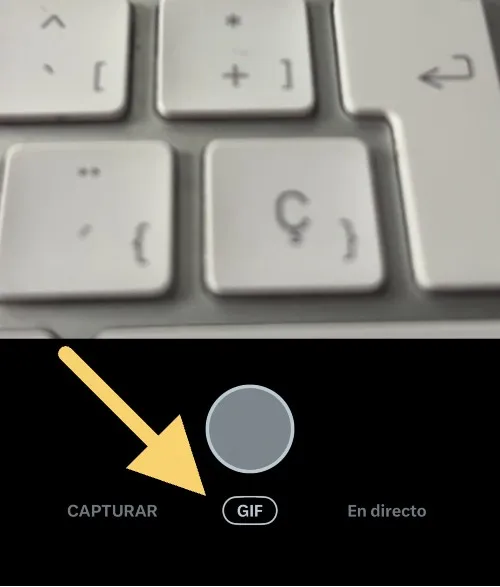
-Press the record button and generate a video, in case of an error press the "retake" button to take the shot again.
-When you are satisfied with the result, click on "use GIF".
-Automatically the newly created GIF will be displayed on the screen ready to send. Add some text if you want, if not click on "post".
In the event that you don't want to create your own GIF - or you can't because you don't have an iPhone - what you can do is send a GIF on These are the steps:
-Enter the X app and enter a tweet that you want to respond to with a GIF.
-Click the plus symbol with a pen located in the lower right corner of the screen to create a new post.
-In the publication box press the GIF icon.
-A library of GIFs will open available for use. Select the one you like the most and it will appear on the screen ready to post.
-If you want to use your own, Press the attach image iconlocated in the same posting panel.
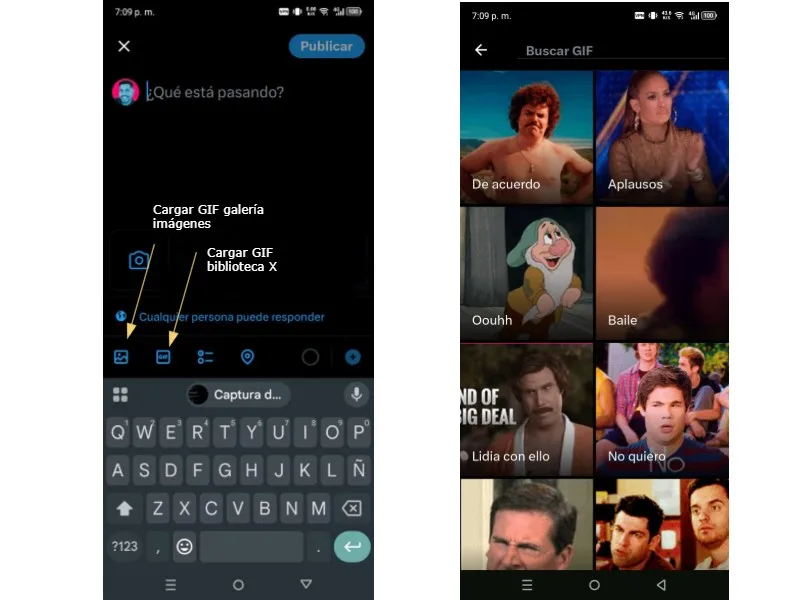
-The device gallery will open and search for the GIF you want to share.
-Select it and it will automatically appear on the screen ready to post.
Leave a Reply