
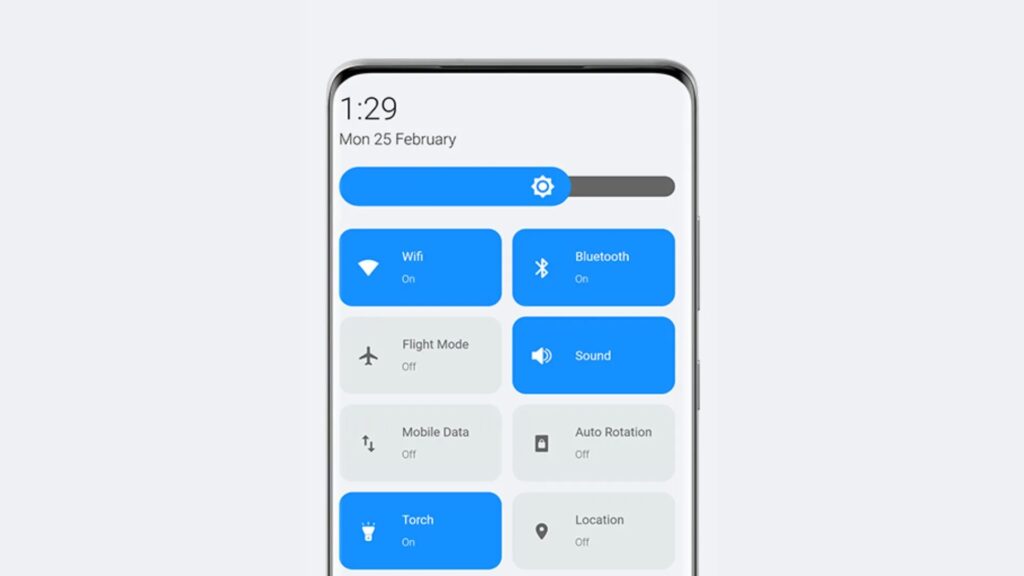
Android mobiles have a function called «Control Center»That is nothing more than the toolbar that you display sliding down from the main phone screen. This center serves to quickly and easily manage various smartphone configurations and access to essential functions.
Thanks to this addition, you will have at hand the Wi-Fi of the mobile, connectivity (Bluetooth), shine adjustment, music reproduction control, lantern activation, airplane mode, QR codes scanner, screen recording ... for that reason, it is important that you adapt it to your priorities to save time when looking for any basic function of the terminal, so they will always be a click of distance.
Steps to customize the Android control center
To modify the control center you will have everything you need on your smartphone, you should not activate additional functions or much less. Do the following:
- Go to your phone's home screen, slide twice down from the center of the screen to completely display the control center and press the pencil -shaped icon located in the lower right angle.

- Now, if you want to remove a card, keep it pressured and crack it down to discard it. On the contrary, if you want to add a new function, lower the cursor, look for the addition that interests you, hold the card and take it up to add it to the command center.

That is all you should do, at the end of the management of the cards you should not keep them manually because the system will maintain the organization you prefer without having to do anything else. Thanks to this simple modification, you will have the tools you use most on your mobile available at the control center so that you access them immediately.
Leave a Reply