

By default, when you use Google Maps while driving, your car's icon is a blue point or arrow that does not have any striking design, it is totally flat and minimalist. However, the application allows the arrow to be modified by other icons that are available in the system.
In this article you will learn what you should do to Change your car icon on Google Maps. In this way, you will have a more attractive design or that offers a better display on the screen because sometimes the arrow can become somewhat confusing or not very striking in sight.
So you can change the car icon on Google Maps
Currently, Google Maps has various models for the car icon and allows you to change it easily. To make the modification, you should only do the following (the procedure is the same in Android and iOS):
- Enter the Google Maps application, set the route that you will travel in the car and press the "Start" button.
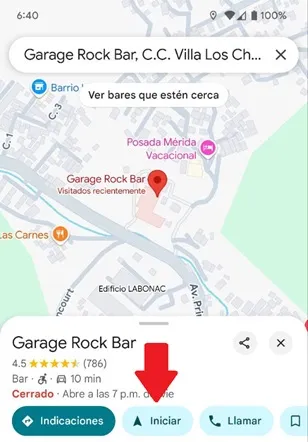
- Press the arrow icon on the screen.

- Now, a floating menu will open to choose the driving avatar, displaces the menu to the left, choose the design that you like best, select the color and press the "Ready" button to confirm the change.

- Once the change is applied, Google Maps will modify the car icon inside the map so that you visualize the avatar of your preference.
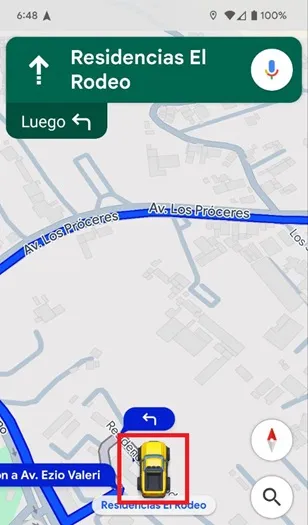
That is all you should do, now every time you start a tour on Google Maps in your car the system will expose the avatar you chose. If one day you want to return to the arrow icon, you just have to follow the steps of the tutorial and in the Avatars section choose the arrow design.
Leave a Reply