

In Pinterest it is possible to schedule content - both photographs such as videos - to be published in the future, although for this you have to count on a company account in Pinterest, since it is a functionality that is not available for standard profiles.
In this platform - which is not defined as a social network - a pin can be programmed - as the publications are called - up to 30 days in advance.
You should keep in mind that you can only program a pin at the same time, but you can have up to 10 pins scheduled for later.
In addition, once you have scheduled a pin, you can update your publication date, your title, the board, the description and the link as long as you want before publication. However, you cannot edit the image or video content of the pin. To change this, you will have to delete it and create a new pin and program it.
How to program a pin on Pinterest
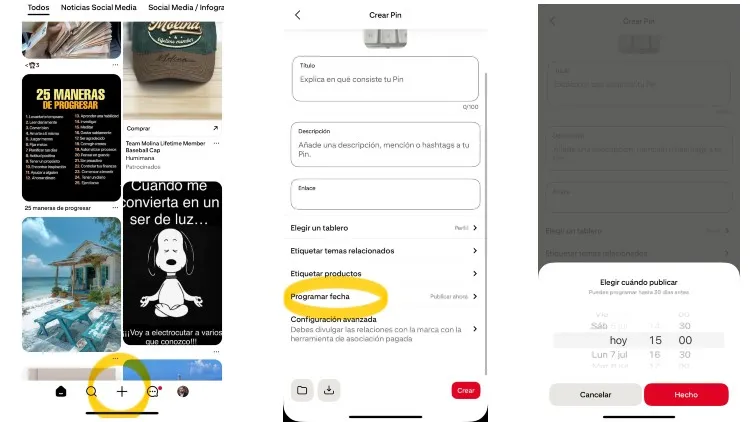
To program a Pinterest content, the first thing to do is click on the + sign which is located at the top of the navigation bar in the Pinterest apps. If you are in the web version, you just have to click on the three horizontal line icon and click on «Create»
Once this is done, you must select an image or take a photo at that time with the mobile camera. You can upload up to 10 different images at the same time, and each image will create a new pin. In addition, if you are using the Pinterest for mobile app you can create a pin and combine several images and videos in a single video pin.
Continue to the page where you can put the photo foot and make scroll to the functions below. In the section «Schedule date» The icon identified with a pencil must be clicking. There you can select the date and time for the pin. Once chosen, you just have to click on "program."
Done this, you can fill in fields such as the title, the description ... and even edit the PIN before uploading it to the platform giving you "publish."
How to delete a scheduled pin
Once a pin is scheduled, you can deprogram, change its content or edit the text, and even erase, if desired.
To eliminate a pin that had already been scheduled you just have to follow some simple steps.
Go to your profile and you will see all the published pins. Look at the top and you will see all the scheduled pins you have.
Now you just have to click on the icon of the suspensive points at the bottom of the pin you want to delete and select delete.
Leave a Reply