
The main task of the YouTube algorithm is to recommend content that adapts to the topics you like and you want to see constantly. Thanks to this, every time you enter the application, the first thing you will see will be videos and shorts that interest you, all so that navigation on the platform is entertaining, dynamic and fluid.
Now, with the passage of time, the algorithm can get to saturate, to the point, that it is not strange that you recommend the same repeated content that you have already seen or expose the same subject repeatedly. Therefore, if you are experiencing this problem and YouTube is ceasing to be attractive to you, in this article you will learn to reset the YouTube algorithm, similar to how we teach you to restart the Tiktok algorithm.
Steps to restart the YouTube algorithm
The following methods will allow you to reset the algorithm in the YouTube app on both Android and iOS:
Delete the reproduction history
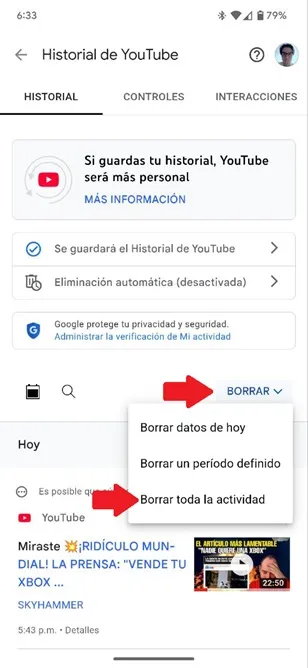
If you want to eliminate all the information that YouTube has saved from your profile, you must eliminate the YouTube history so that the algorithm is restarted, do the following:
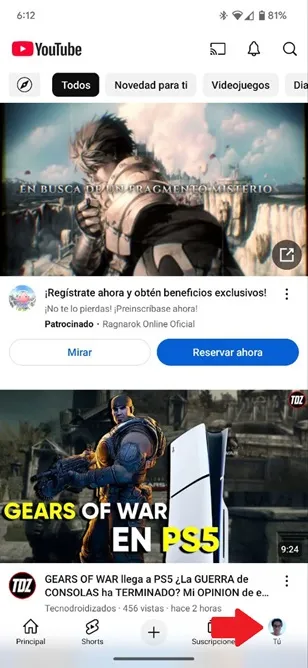
- Enter the youtube application and press the icon of your profile located at the lower right angle.
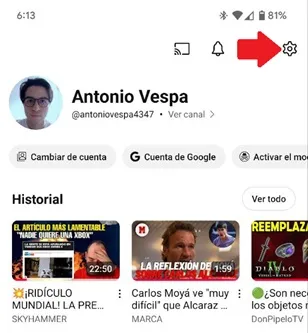
- A new menu will open, squeeze the gear -shaped icon that is in the upper right corner.
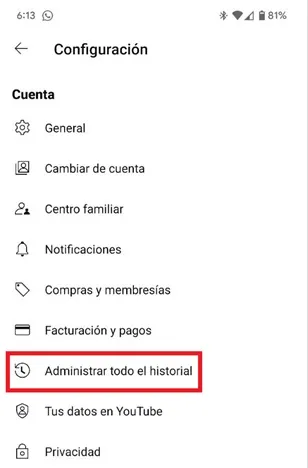
- Select "Administer all history."
- Finally, oppress the option "Delete" and choose "Delete all the activity" to suppress the history completely and reset the algorithm.
Filters the content
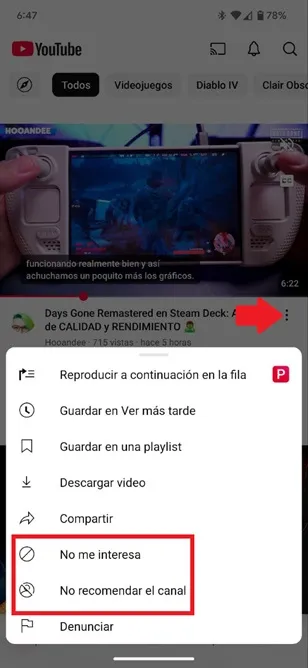
On the other hand, if you do not want to delete the YouTube history, you can tell the algorithm what kind of content you are not interested so that they do not show again on the home screen:
- Enter the YouTube app, look for videos with the issues that do not interest, touch the three vertical points that are under the preview of the video and select "I am not interested" so that the algorithm does not recommend that type of content again. Additionally, you can also choose "Do not recommend the channel" so that YouTube does not expose content creators who do not attract your attention.
Leave a Reply