
It is quite common for you to forget your Wi-Fi network password. Even more so if you never changed it and left the string of numbers and letters that came by default. Also if you haven't used it for a long time or if when you set it up you entered a strong password that you don't remember now.
Also, if you don't know the password for the Wi-Fi at home and guests come, you will have to look under the router to tell them, unless you have it written down somewhere else: a notebook, a cork board in your room or in the note-taking app on your cell phone.
The same thing will happen to you if you try to install a new device and you have to enter the Wi-Fi password. Unless you have it written down somewhere else, you will have to go to where the modem is, pick it up and look at the sticker that includes the key in question. And let's admit that that is usually tedious.
Often, managing multiple passwords or using a password manager can cause this valuable information to be forgotten. However, if you already have devices connected to that network, you can recover it easily using your mobile phone or computer.
With what you will learn in this article, you will not need to enter the router or reset it, it will be enough to check the password thanks to an already connected device. If you don't know how to do it, in this article you will learn step by step how to know your Wi-Fi password immediately and without so many complications, so you can connect to the wifi network without password.
Steps to obtain the password for your Wi-Fi network
Below you will find a guide to discover your Wi-Fi network password depending on the operating system you use:
On iPhone mobiles (iOS)
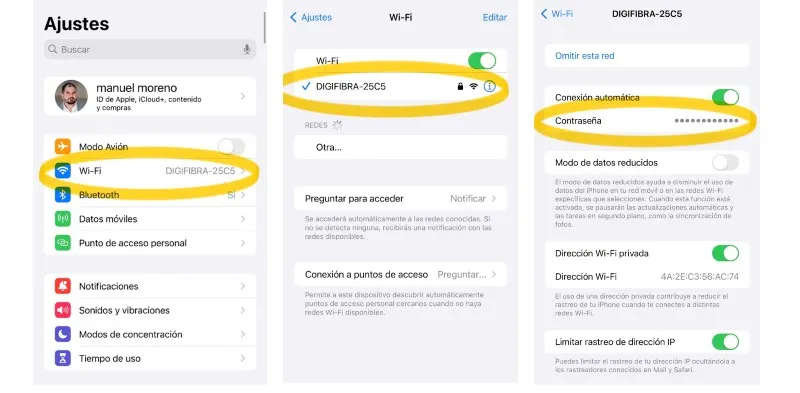
In case you have a device with iOS operating system and you want to know what your Wi-Fi password is, you must follow these steps:
-Open the Settings option on your device and look for the window called Wi-Fi.
-There verify that you are connected to the network for which you want to know the key. If so, tap the blue information icon next to the network name.
-This way you will be able to see how it has been configured, whether for your mobile to connect automatically or not.
-Next, you have to press on the strip that says Password. The system will ask you to authenticate using the method you have configured as your screen lock, either using a PIN code or Face ID.
-Later, the password will appear and you will be able to see it. There will also be an option to copy and paste it somewhere else if you want to save it.
On Android
If it is an Android device, to know your Wi-Fi key you must follow these steps, which may vary slightly depending on the brand of your mobile phone.
-On Samsung phones:
-Open Settings or Configuration on your mobile.
-Look for the Connection and Wi-Fi strip.
-Then, click on the gear icon next to the current network you are connected to.
-You will see the password field, which will be hidden. To see it, click on the eye icon. It will ask you to confirm your identity and that's it.
-On Google Pixel mobiles:
-Enter Settings.
-Look where it says Network and Internet and then select Internet.
-Click on the gear icon that appears next to the name of your Wi-Fi network.
-Next, press Share. You must validate your identity and then the QR code will appear so that others can connect. Below, you will see the password reflected, and you can write it down and save it.
-On Xiaomi phones or other models:
-Enter Settings.
-Click on Wi-Fi.
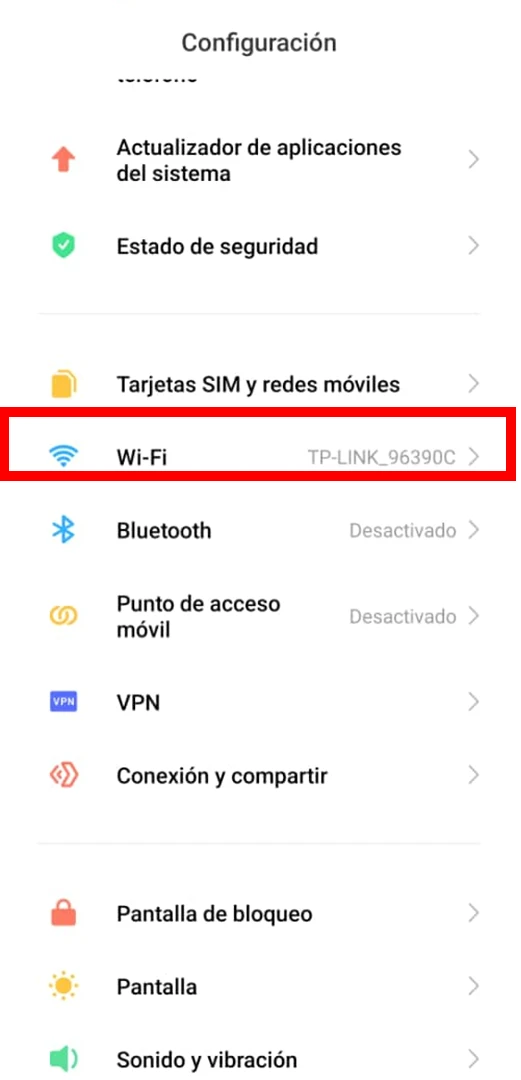
-Select the network you are connected to and the QR code will open to share Wi-Fi.
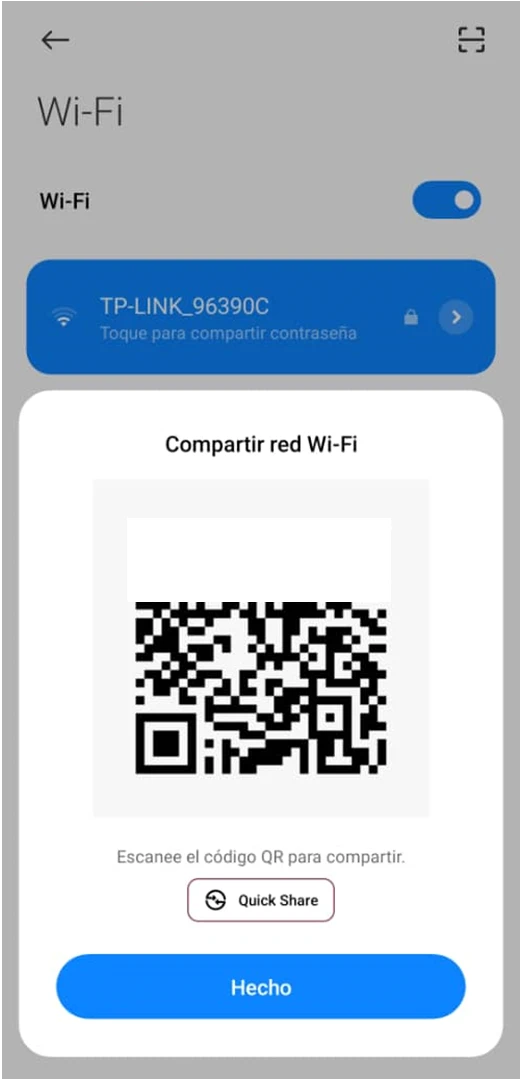
-Scan the code using another device and once scanned, a window will appear to establish the connection.
-Before connecting, you will see a strip with information on the network name, type of security and a section with the hidden password. If you click on it, you will see the key in text form. Although it does not allow you to copy it, you can take a screenshot or annotate it.
-Please note that some of these functions may or may not be available, depending on the mobile model you have or the version of the operating system.
On Windows
The process so you can see your Wi-Fi password in Windows is as follows:
-Locate yourself in the bottom bar of your computer and click on the Wi-Fi icon.
-Then, select where it says "Open network and Internet settings."
-Next, the network where you are connected will open and you click where it says "Network and Sharing Center."
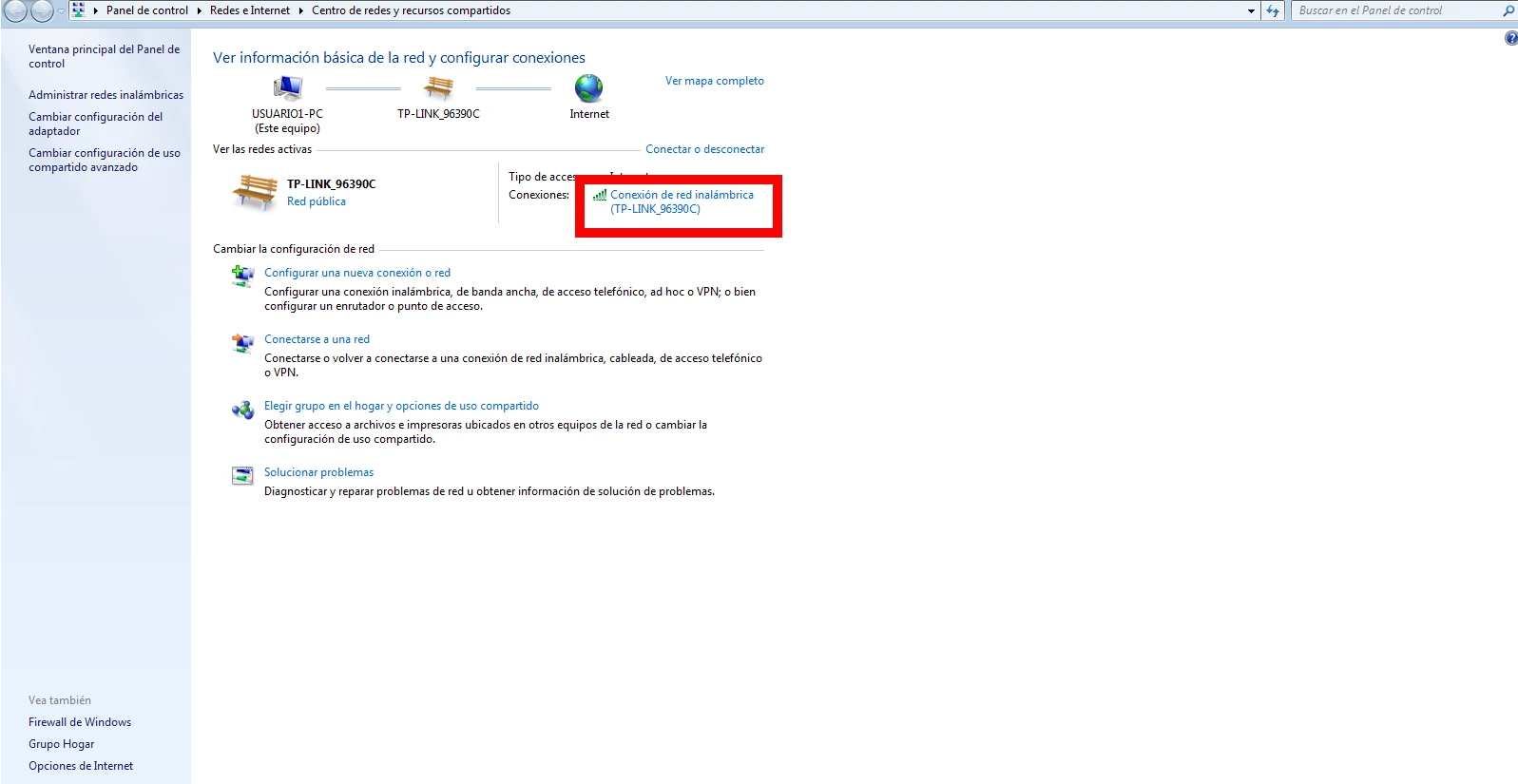
-Then, click on the name of your Wi-Fi network.
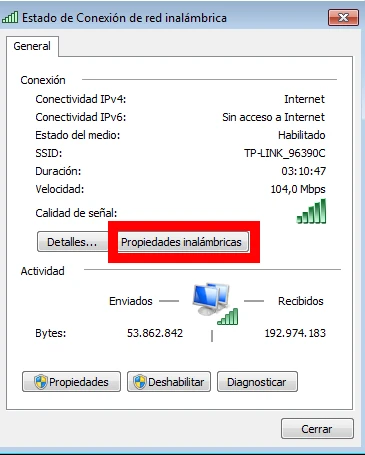
-This will open a new window and you must select "Wireless Properties".
-Once this is done, you will see another window that says "Connection", next to it there will be one that says "Security" and click there.
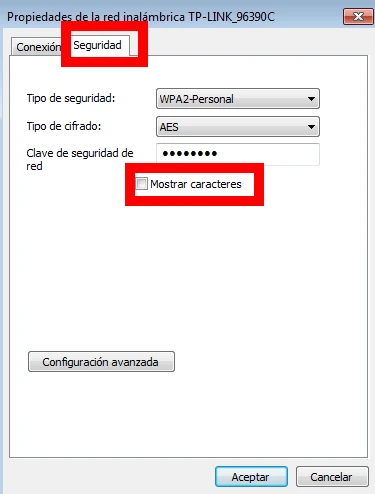
-You will see a screen with your Wi-Fi network data and the hidden key strip. So you can see it, click on the box that says "Show characters" and you can look at it and copy it to save it somewhere else.
On macOS
In case you use macOS and need to verify your Wi-Fi password, you must do the following:
-Open the Apple menu.
-Then, click on the section that says "System Settings."
-There you must select the window called Wi-Fi.
-Then the network where you are connected will appear at the top of your screen.
-So you can see the key, scroll down until you reach the "Known Networks" option.
-A new list will appear and next to it you will see three dots. You have to select there and then click on "Copy password" so that it is sent to the clipboard.
-Once this procedure is done, go to an application like Notes or TextEdit and you can paste the password to have it at your disposal.
Leave a Reply