
On both Android and iOS phones you can create shortcuts. They are icons that are placed on the mobile home screen to quickly open applications, web pages, contacts and practically everything you want. In this sense, they work similarly to Windows 11 shortcuts.
Thanks to this function, you will be able to save time, simplify access to any platform and personalize your experience when using your smartphone.
If you want to create quick links to the things you use most on your phone, in this article you will learn how to do it correctly. It is an easy, fast and safe procedure because you will not depend on third-party applications, since Android and iOS offer what is necessary to generate the links in a simple way.
Steps to add shortcuts to the home screen
The instructions for adding a shortcut will depend on the link you want to generate, although they are very simple and quick procedures:
On Android
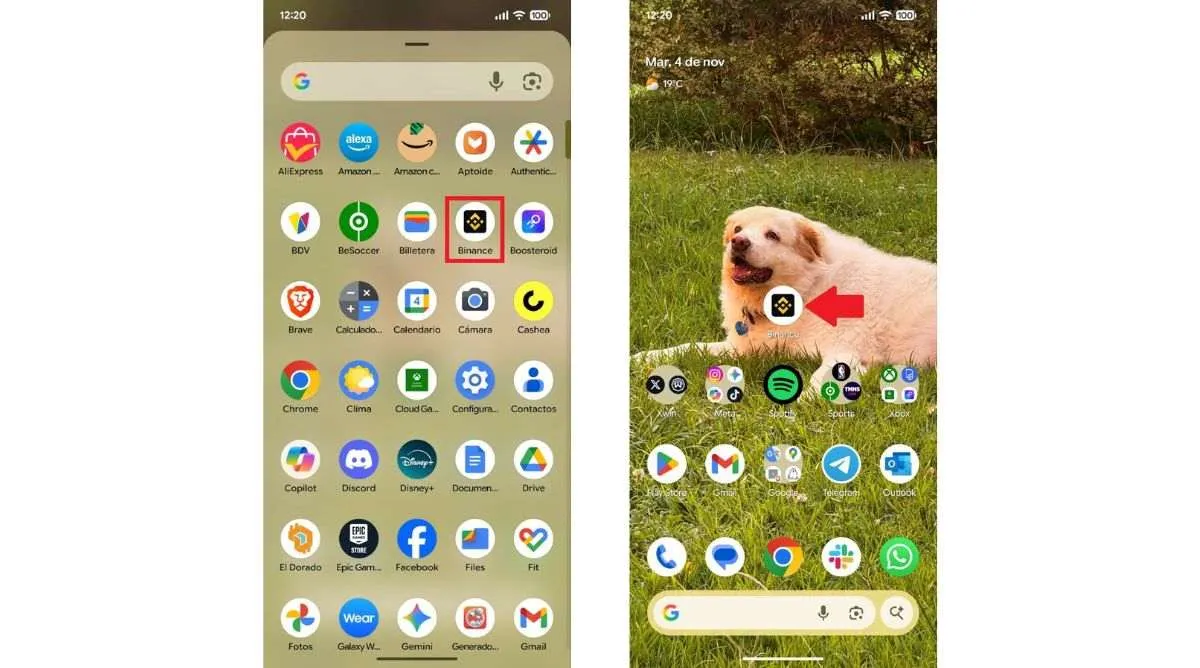
– If you want to create a shortcut to an app, you just have to go to the application drawer, press and hold the application and drag it to the home screen.
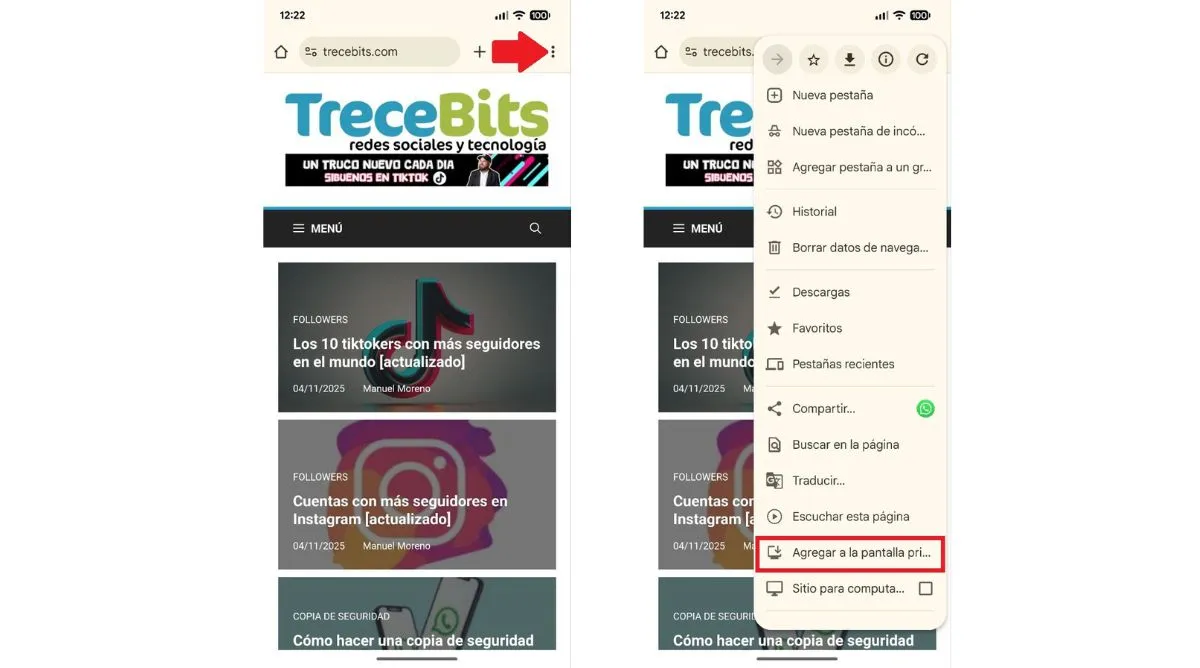
– In the case of a web page, go to Google Chrome, search for the website, enter it, press the icon with the three vertical dots located in the upper right corner and select “Add to main screen”.
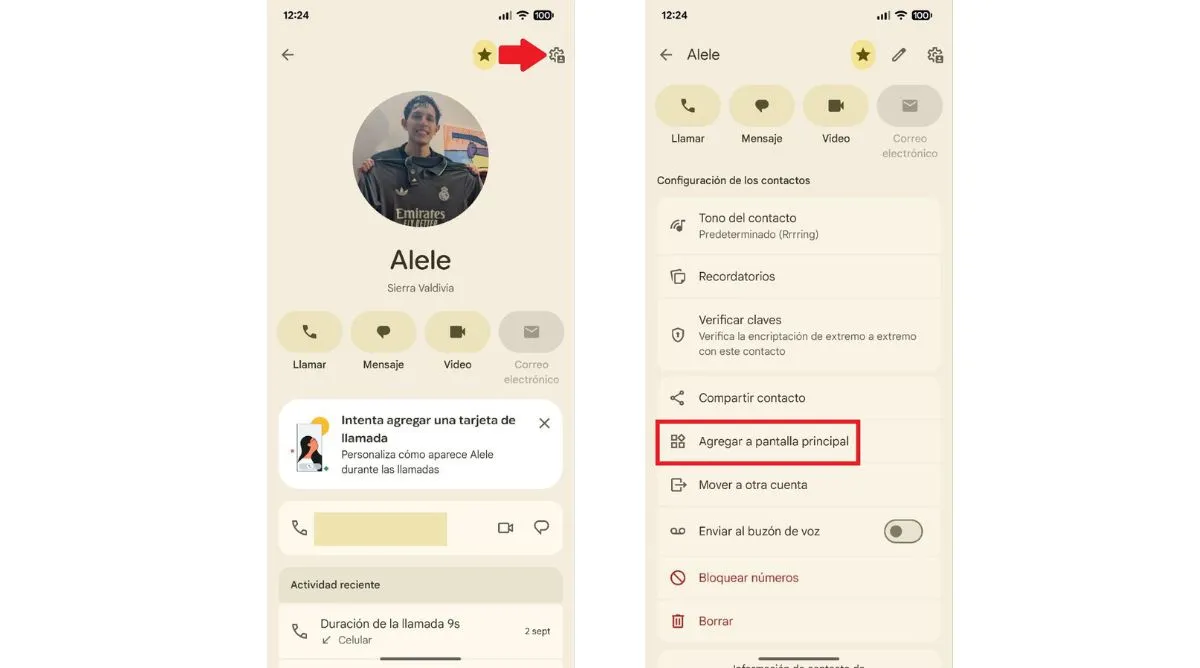
– If it is a contact, you will have to search for it, then go to its file, press the gear icon in the upper right corner and choose “Add to main screen”. This is how you will always have it on hand.
On iOS
– To generate a shortcut, go to the “Shortcuts” app, create or choose the shortcut you need, press the three vertical dots icon and click on the “Add to home screen” option.
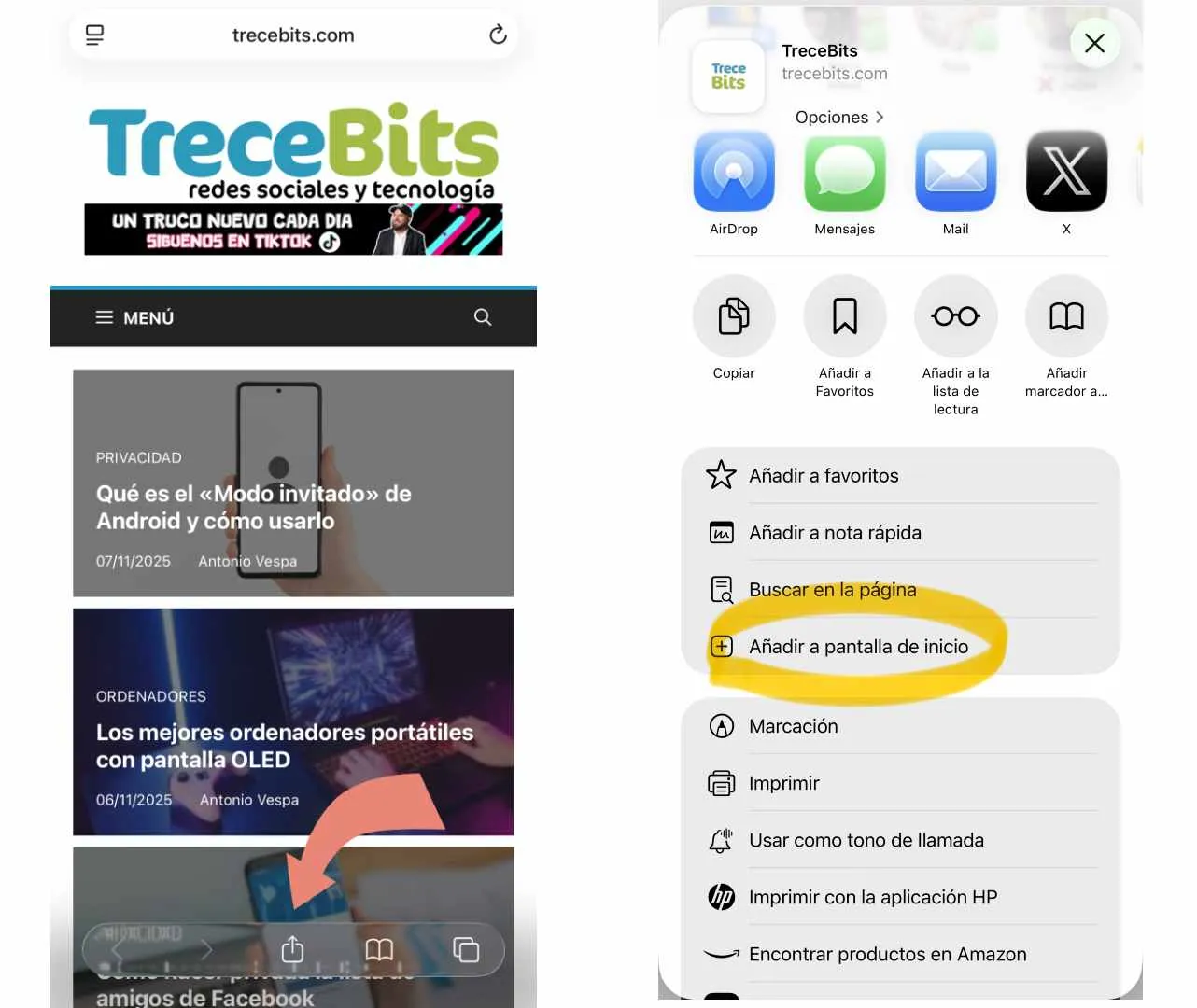
– If it is a web page, enter the Safari browser, press the “Share” button and click on the “Add to home screen” function.
Leave a Reply