

Know how much RAM your computer has It is important for you to have a clear idea of the performance that your PC could offer you.
For example, many modern games and video editing applications need a considerable amount of RAM to function fluently and, if you do not meet this requirement, the operating system could slow down or freeze.
On the other hand, knowing the type of RAM, such as DDR3, DDR4, DDR5, etc., is crucial to know what performance you could expect and avoid unnecessary expenses because you cannot install any RAM on your PC. That is, if the computer plate is designed for RAM DDR4, you must buy the same type when you decide to make a modification.
If you have a Windows 11 computer and you don't know how to access your RAM's information, don't worry. In this article you will learn what you should do to obtain all the data in an easy, fast and safe way.
Steps to see how much RAM you have
To see the amount of RAM available, Windows 11 offers everything you need to do inspection, you will not need to install any third -party program. The procedure is as follows:
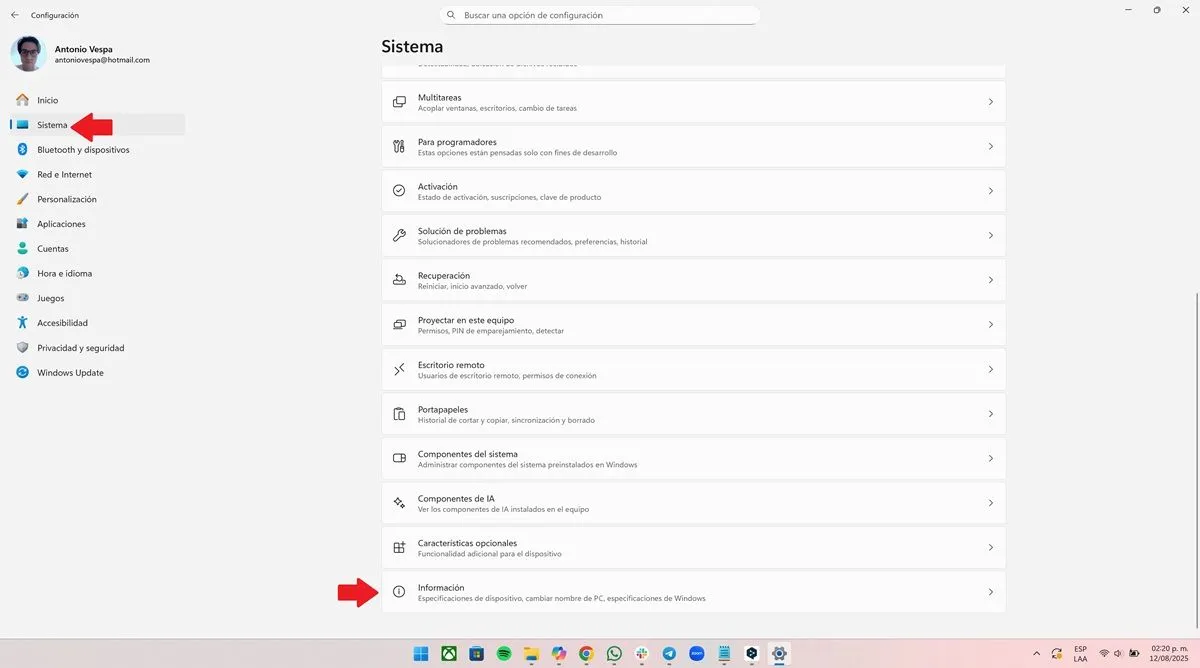
- Enter the "Windows configuration", click on "System" (option located in the left menu), move down and select "information."
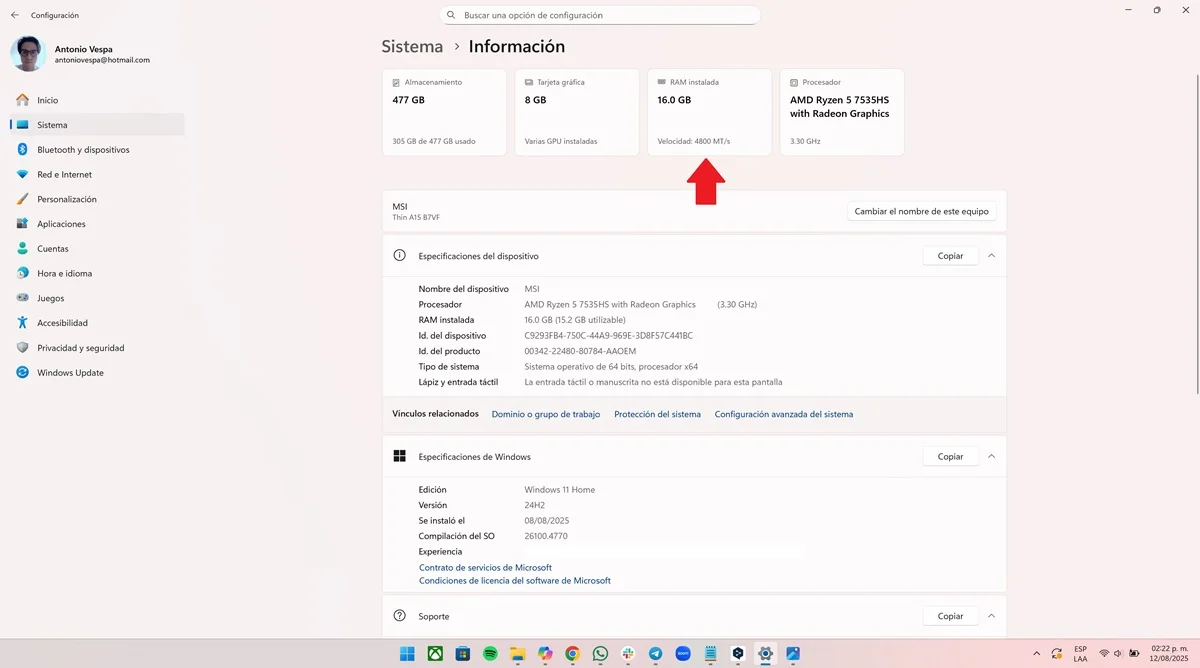
- Now, in the boxes located at the top of the screen, you will see the amount of RAM installed.
However, if you want to be more direct, do the following:
- Press the keys Control + Shift + ESC to open the task manager. Once inside, click on the third icon located in the left area of the screen to access RAM information in real time. There you will see the amount of RAM available in the upper right angle.

How to know the type of RAM of your computer
To know the type of RAM of your PC, you must install an application called CPU-Z because Windows 11 does not offer this information (https://www.cpuid.com/softwares/cpu-z.html). Highlight that CPU-Z is an excellent reputation program, so you don't have to worry about the integrity of your computer.
-Once CPU-Z installed, open the app and click on the «Memory» tab, there you will see the type of RAM of your PC in the «Type» box.

Leave a Reply