
To avoid missing the content that interests you most on YouTube, it is best to subscribe to the channels that you like the most, those of the content creators on YouTube who make the most relevant videos for you.
You can discover them thanks to the recommendations of the YouTube algorithm or because someone tells you about them, or simply by chance. But in any case, if you have been a YouTube user for years and have subscribed to many channels, it will be advisable that you manually manage your subscriptions to ensure that you are always aware of the content you want.
In this article you will find small tutorials so you can manage your YouTube channel subscriptions properly. From starting to follow a channel to stopping being a subscriber if you are no longer interested in what they publish.
You can perform the following procedures on the YouTube website and in the Android and iOS app, since the instructions are the same. However, if you want to be more comfortable, we recommend that you complete the steps from your computer:
How to subscribe to a YouTube channel
This will help you follow the YouTubers and media that offer you the content you want to see:
– Go to YouTube and search for the channel you want to subscribe to, you just have to write its name in the search bar and click on the medium in question.
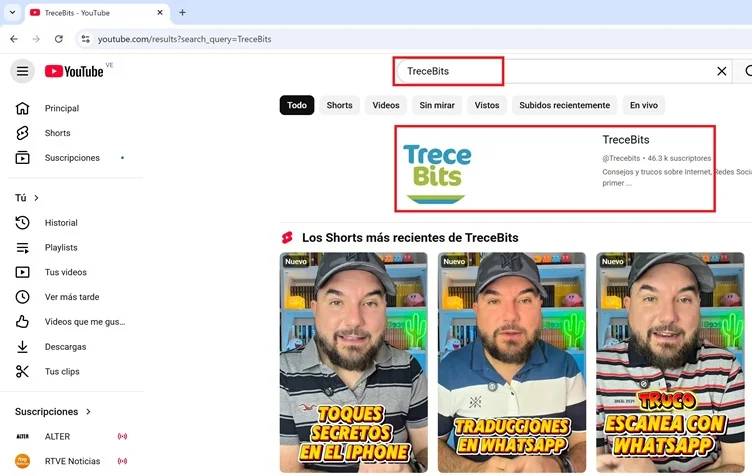
– Once inside the channel, just click on the “Subscribe” button to add the channel to your subscription list.
Receive alerts
Alerts will help you receive real-time notifications when your favorite channels publish new videos, so you will always stay up to date with newly uploaded content:
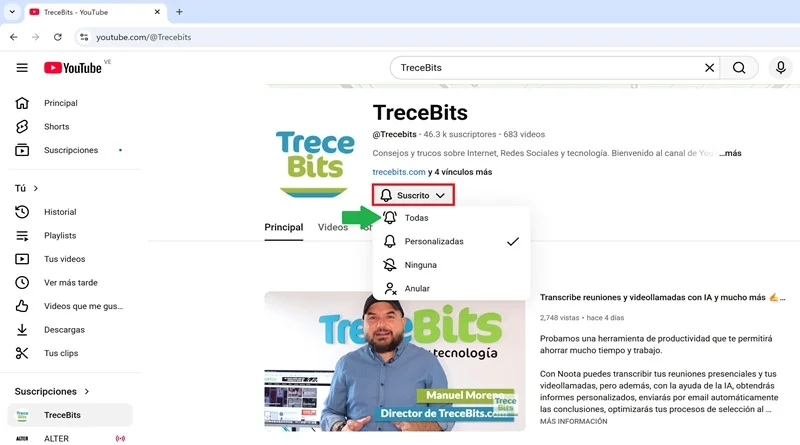
– All you have to do is click on the “Subscribed” button and a small window will appear. Then, select “All” to have YouTube send you an alert when the channel posts a new video.
Where to manage all channels in one place
If you subscribe to a large number of channels, you will be able to access all of them in a single section, which is useful for easily managing each subscription.
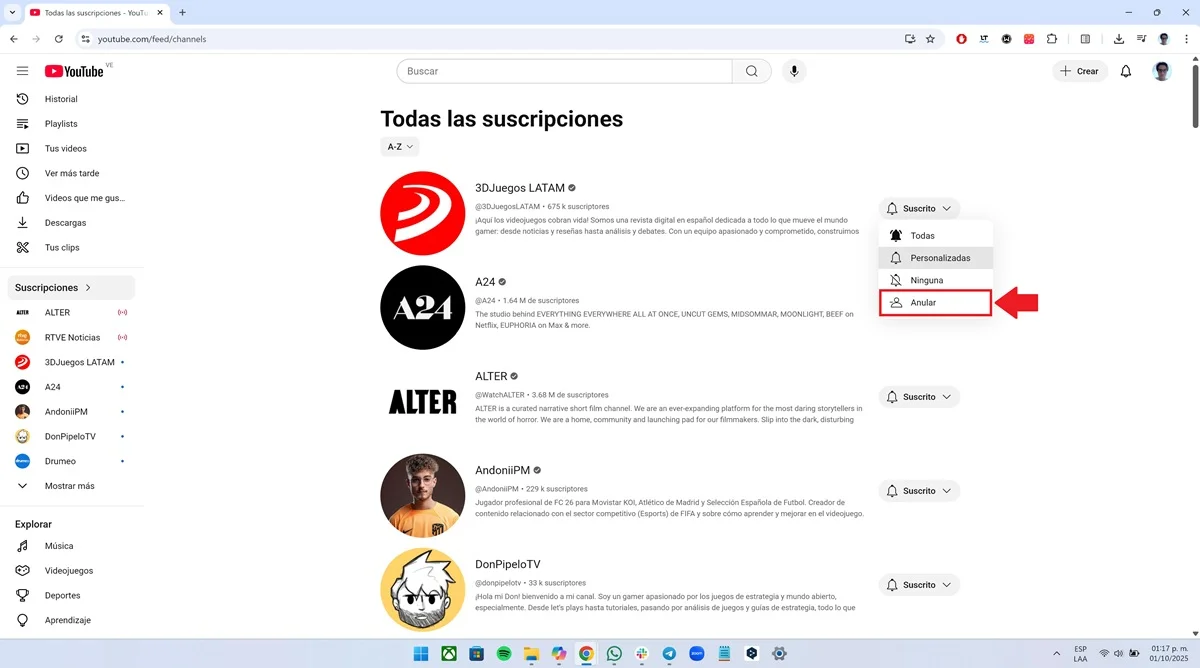
– The first step is to enter YouTube and click on the “Subscriptions” option found in the menu located on the left side of the screen.

– Now, you will see the entire list of channels to which you are subscribed. To configure alerts, select the “Subscribed” button located to the right of each channel and choose between: “All” (to receive all alerts), “Custom” (to personalize notifications) and “None” (option to remove alerts).
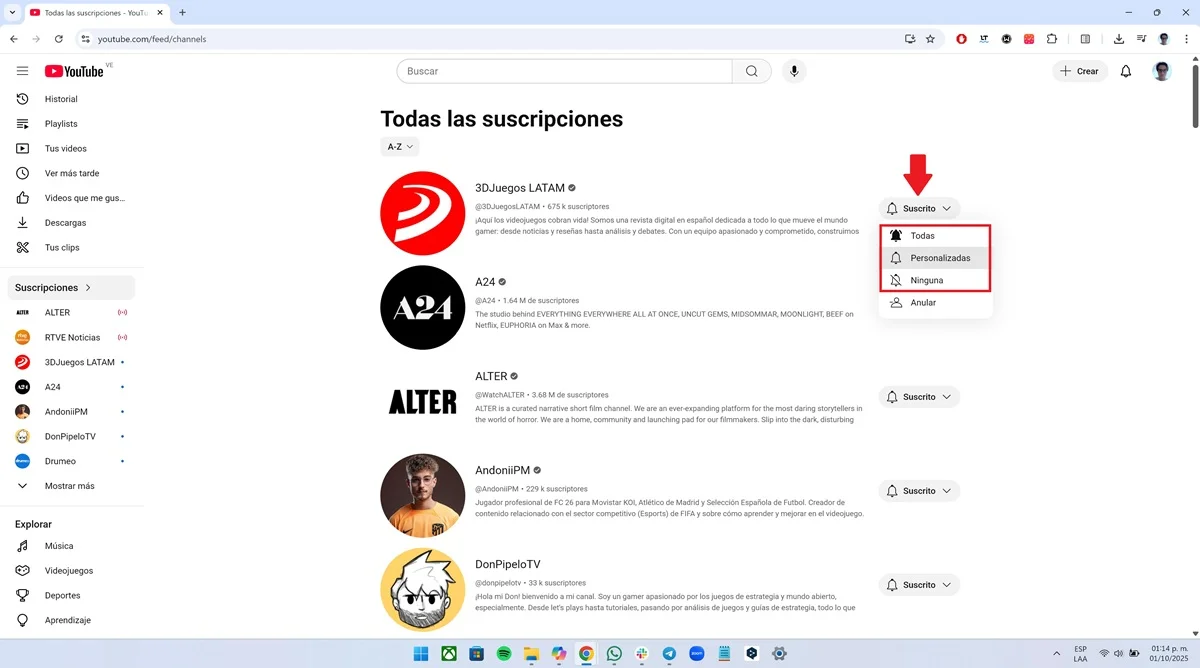
– Finally, if you want to unsubscribe from the channel, click on the “Unsubscribe” option to unsubscribe and delete the channel from the subscription list.
How to unsubscribe from a YouTube channel
Logically, if the channel no longer interests you, you can unsubscribe to keep your subscription list organized:
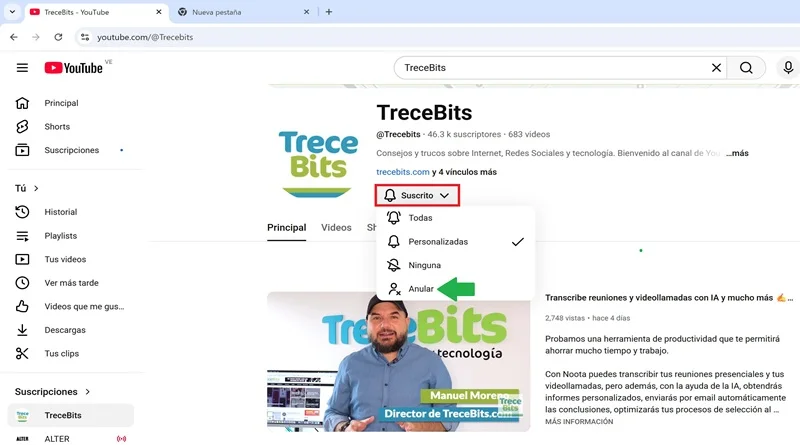
– Search for the channel in question, click on the “Subscribed” button and choose “Unsubscribe”, this will be enough to unsubscribe.
Leave a Reply