

Among all the new features that have arrived at the Google Play Store, the possibility of have your own Google Play Games profilethat is, a profile that has nothing to do with the Google Play Store. The idea of this is that you have your own space within the mobile phone reserved for video games, and in it you can accumulate points, observe your progress, check achievements and more.
Therefore, if you like to play on your smartphone, the new integration of Google Play Games will be extremely useful and comfortable because you will access all the “gamer” information in one place. In this article, you will learn how to manage every detail of your account so that it suits your tastes.
How to create your Google Play Games account
To create an account on Google Play Games you need to have a Google account, although you can create one if you need to when you sign up for Google Play Games. To open your account in Google Play Games, you have to do the following:
-Go to the Google Play Games app from your mobile phone.
-If you don't have a profile, the app will ask you to create one automatically. The invitation may appear as a pop-up message or as a red dot on your profile photo indicating that you have received a new message.
-Now you would only have to follow the steps to enter your player name, profile image and configure privacy.
Customize your Google Play Games profile
To change the name of your account you must do the following:
– Go to Google Play Store and press your profile icon located in the upper right corner.

– A menu will open, there select the box called “Google Play Games Profile”.

– Now, press on the three vertical dots in the upper right corner and choose “Edit gamer name”.
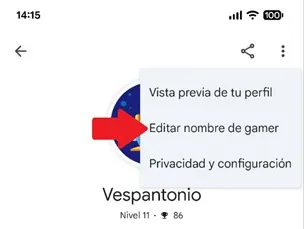
– Finally, write the name you want and press the “Save” button so that the new name is registered in your Play Games profile.

To modify your profile photo, just follow these steps:
– While in the “Google Play Games Profile”, press the pencil-shaped icon next to the account image.

– The platform will offer you two options, you can create an avatar with Gemini by pressing the “Start” button or choose any predefined image from the list shown at the bottom.

– Once the avatar has been chosen or created, press the “Use” button to add it to your Google Play Games profile and replace the previous photo.

Leave a Reply