

The Dark Windows 11 mode is a software function that allows you to modify the visual configuration of the operating system so that the color palette is darker. Thanks to this, the shades will be black and gray, accompanied by clear texts to facilitate reading.
In addition to changing the design of the operating system, this mode is designed to offer greater visual comfort in low light environments, preventing the monitor screen from projecting light and brilliant nuances that are annoying in sight.
Enable this mode is a simple and safe process in Windows 11, since it is as simple as activating the dark mode on the iPhone because you will have everything you need at a distance from a click. In this article we will explain what you should do to use it.
Steps to put the dark mode on Windows 11
Windows offers everything you need to enable dark mode quickly, easily and without complications, you should only do the following:
- Enter the “configuration” of Windows (gear -shaped icon) and in the menu located on the left side of the screen, click on «Personalization».

- Now, select the option "Colors."

- Finally, click on the "Choose your mode" box and choose "dark" to activate the dark mode in Windows 11.

How to program automatic dark mode on Windows 11
The procedure explained so far will only help you activate the dark mode in Windows 11 manually, since the operating system does not allow the design change to configure according to the time. If you want to enable automatic change between clear and dark mode as the time, follow these steps:
- Enter Microsoft Store and download and installs the "Auto Dark Mode" application.

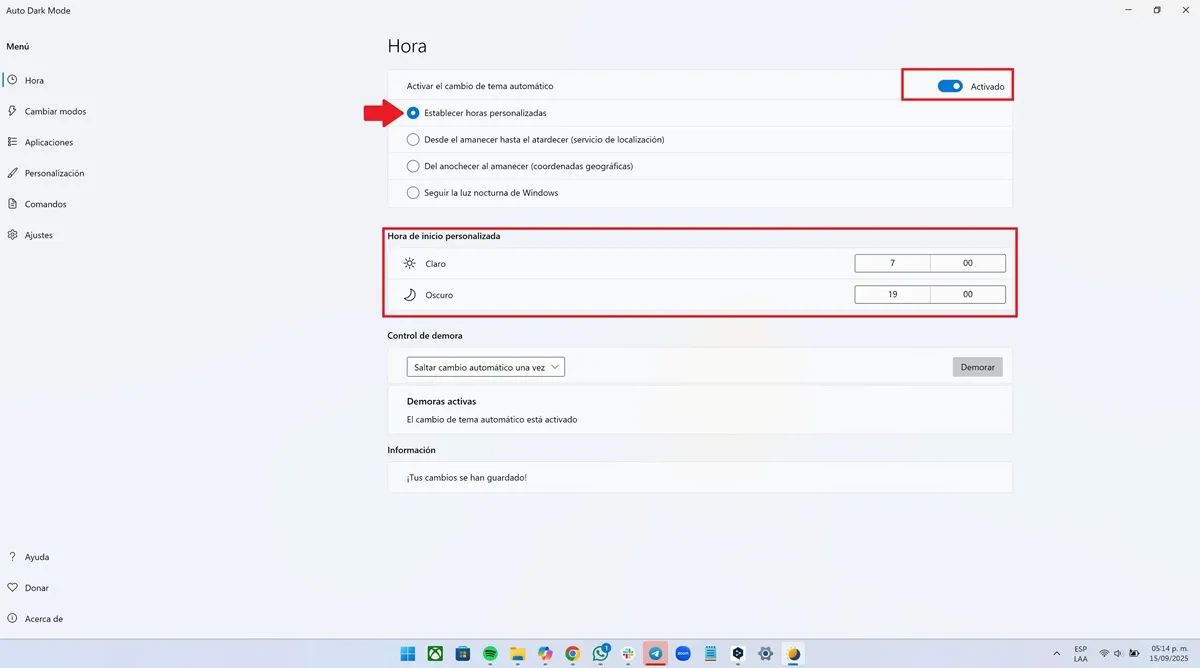
- Enter the app, activate the “Activate automatic theme» function switch. Then, mark the option "Establish custom hours" and choose the personalized starting hours in which you want the clear and dark mode of Windows to be activated.
Leave a Reply