

The discharge of files on the Internet entails certain risks. Aaccidentally you can contaminate your computer with malware, viruses, pirate software, corrupt documents ... Therefore, it is important to be cautious when lowering content because you could compromise the integrity of your PC and your personal information.
Windows offers various functions that will allow you to check the safety of a file before opening it so you don't contaminate the operating system with a virus. In this article you will learn the most effective methods you have at your fingertips to protect your PC from malicious software.
Know the state of the files downloaded on your PC
There are several procedures that you can apply to know if the files you have downloaded on the computer are safe:
Use Microsoft Defender
This is the simplest and fastest method, when you download the file you should only right click on it and select "Analyze with Microsoft Defender." This will be enough to start the Native Windows antivirus to tell you if the file is safe or if it is contaminated with a virus.

Verify the digital signature of the file
If it is an official and safe program, it will be digitally signed by the developer to ensure that the software does not represent a risk. When these signatures do not appear anywhere, it is most likely that it is a pirate or corrupt program.
To buy the digital signature of the File Do the following:
- When you download the program right click on it and select "Properties."

- Now, press the "Digital Signatures" tab and check that the official signatures of the application in question are. If the app has the right firms, it is a safe program free of any threat.

Compare the hashes
Hashes are a unique identifier for each file, this means that it will be enough to check the hash of the downloaded program with the official hash published by the developer to know if it is an original and safe version.
- Open the Windows menu, write in the Windows Powershell search bar and choose the second option.

-Once inside Windows Powershell, write Get-Filehash and press the space bar.
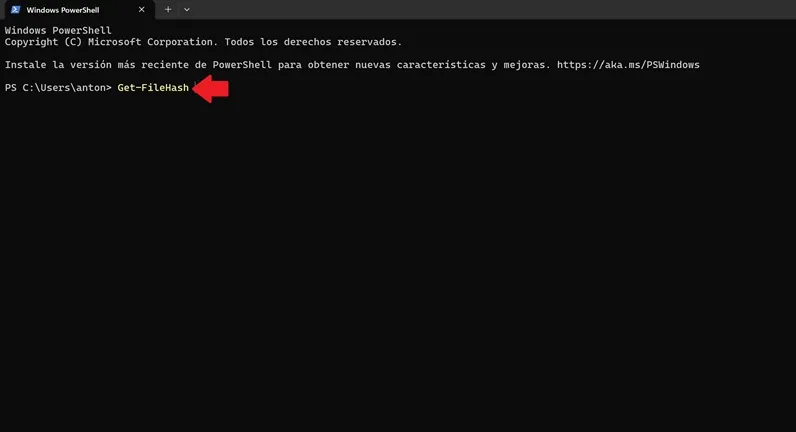
- Now, you will have to copy the file route. To copy the route, right click on the file and choose "copy as an access route."

- Arrived at this point, paste the access route on Windows Powershell and press the Enter key to get the file hash. Finally, compare your file hash with the official program hash to verify that you have the official version of the software in question.

Activate Windows SmartScreen filter
The SmartScreen filter will help you to receive real -time alerts from the safety scans that Windows performs. Thanks to this, Windows will protect the computer against malicious files and notify you immediately so you know if the software you downloaded is safe or if it represents a threat.
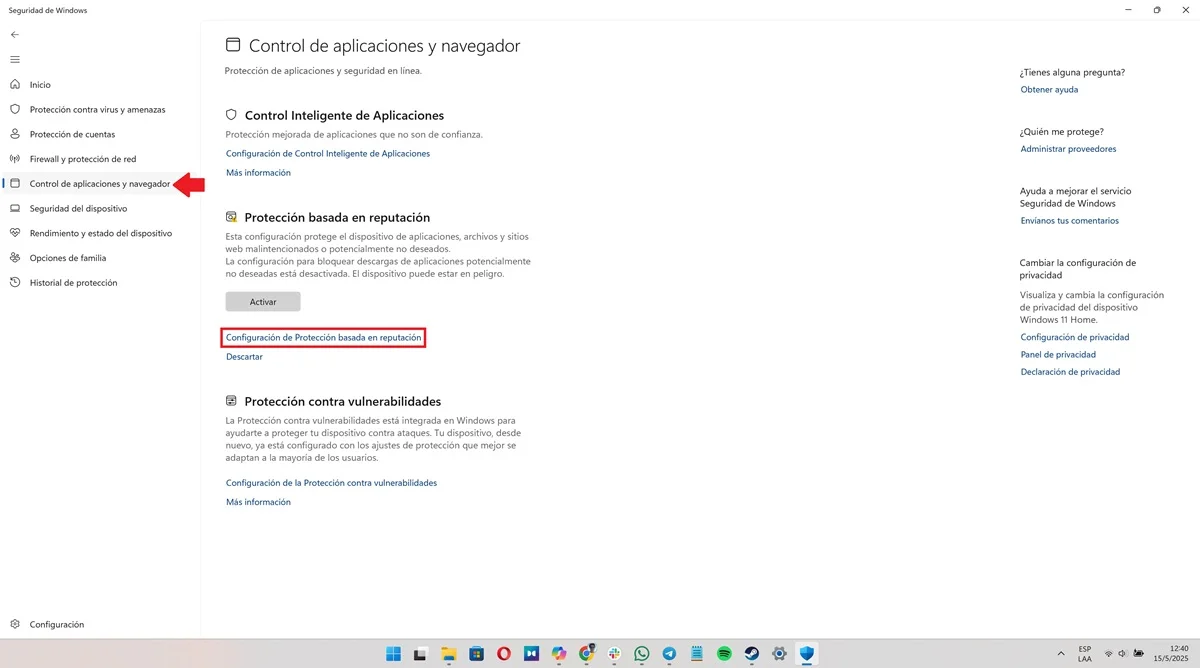
- To enable SmartScreen, write “Windows Security” in the search bar of the start menu and select the first option.

- Being within the Windows Security menu, click on the option "Application Control and Navigator" and choose the option "Reputation -based protection configuration."
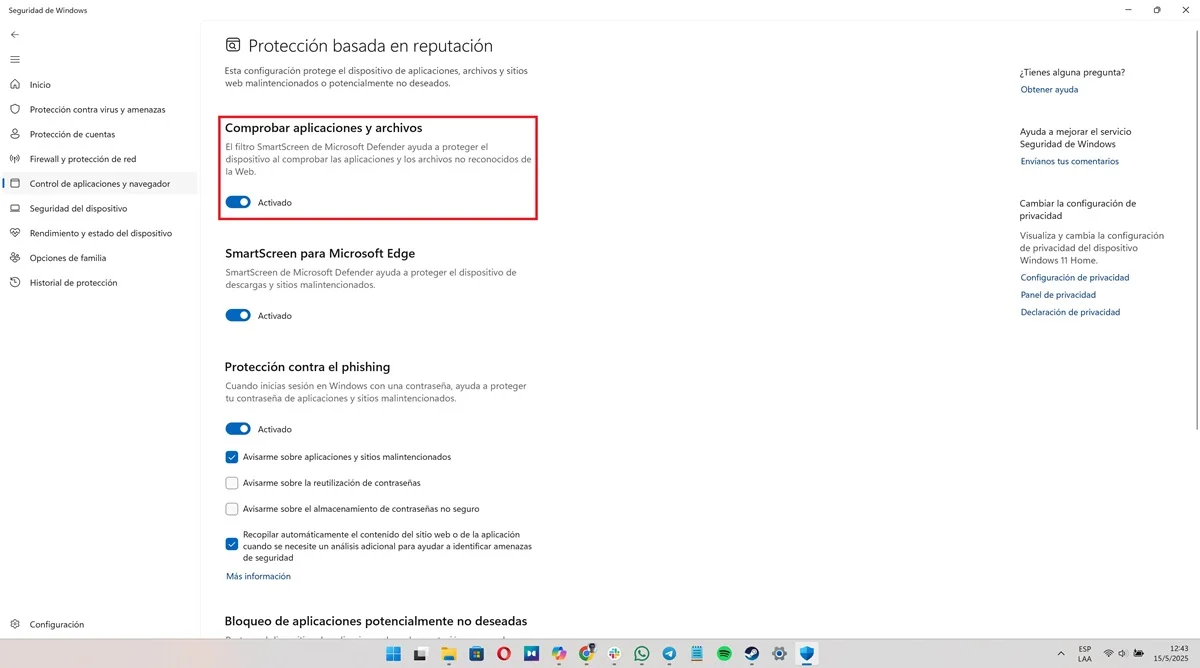
- Activate the "Check applications and files" switch to enable Microsoft Smartscreen filter from defending.
Use an antivirus
Finally, an effective, easy and safe alternative that you have at your fingertips is to scan the file with one of the best computer for computer before opening it.
So you will know if it is a safe program or if, on the contrary, it contains malware. Some of the most recognized antivirus brands are McAfee, Norton 360, Avast and Malwarebytes.
Leave a Reply